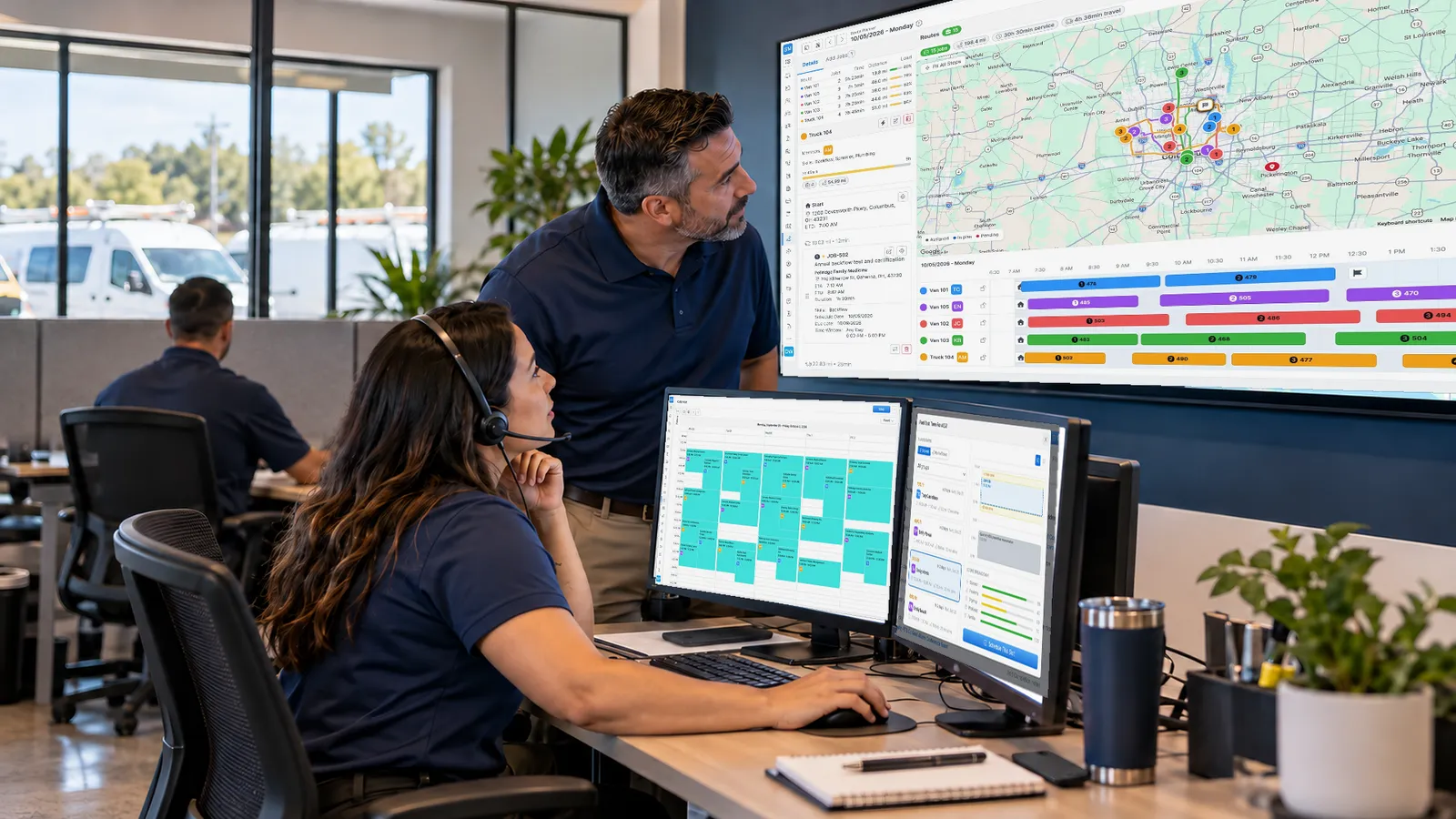
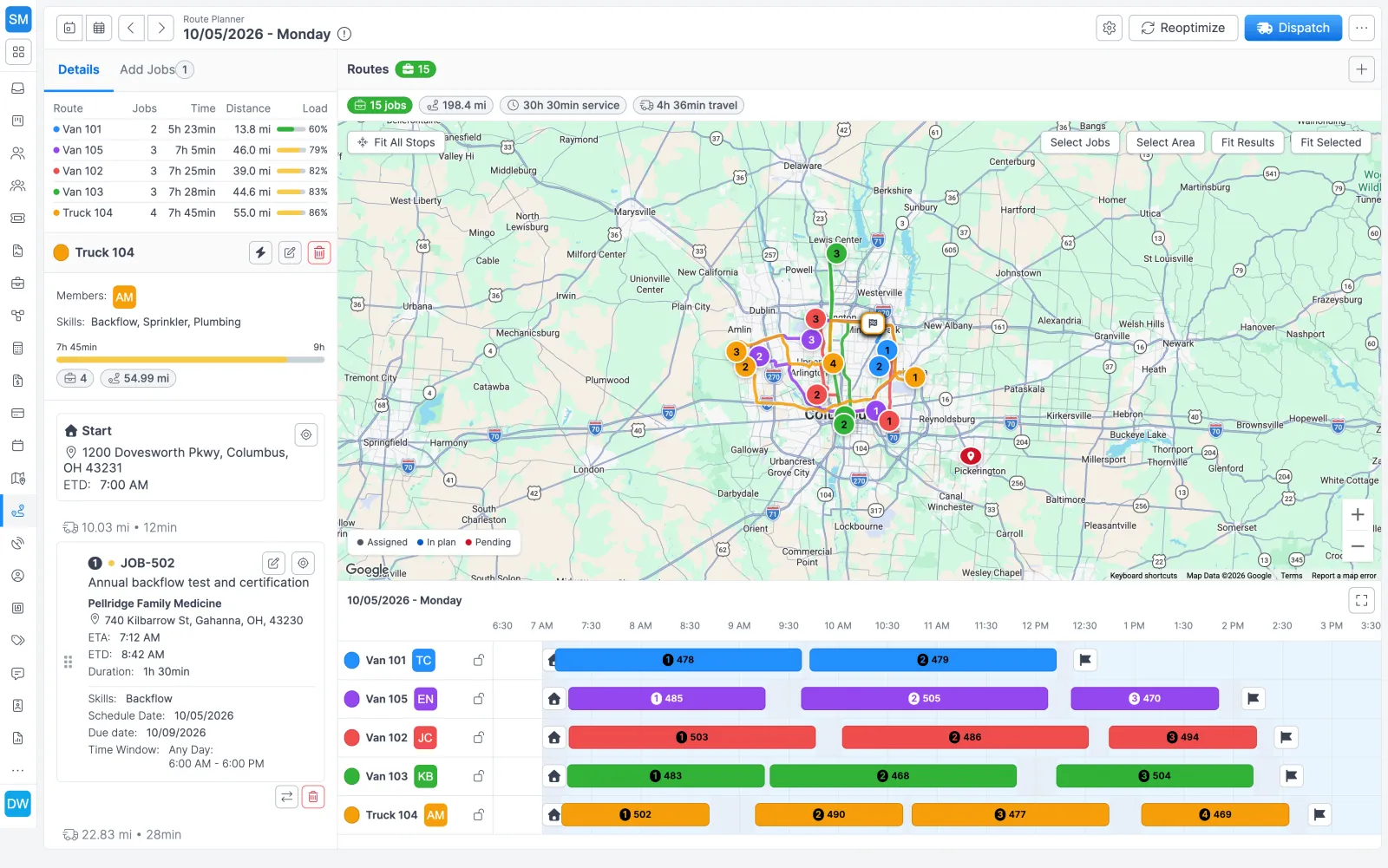
Planning a day, step by step
- Open the date. Click Route Planner in the sidebar. The first time you open a date, Forz creates its planner and copies in your route templates.
- Check the routes. Each route lists its members, skills, start time, and duration. Use the + button to add another route for that day.
- Filter the candidates. In Add Jobs, filter by job type, labels, skills, city or ZIP, and due date. A summary line shows how many jobs match, how many are available, and how many need attention, such as a job with an invalid address.
- Build a selection. Tick jobs in the list, pick pins on the map, or draw an area. The selection bar shows the count and the combined service time. Then click the Add Jobs To Plan button.
- Review the first optimization. On an empty plan, Forz optimizes the first batch straight away. Read the summary bar, the timeline, and anything left unassigned.
- Adjust and lock. Drag stops between lanes, reorder them, lock the routes you are happy with, and reoptimize the others.
- Dispatch. The confirmation names the number of jobs, the number of routes, and the date. Every assigned job becomes a calendar event and moves to Scheduled.
Candidates, the pool, and stops
A job can sit in three places on the planner, and only one of them gets scheduled.
| Where the job is | Where you see it | What Dispatch does with it |
|---|---|---|
| Candidate | Add Jobs panel | Nothing. It is not in the plan yet. |
| Unassigned job | The plan’s pool | Not scheduled. Released so another day can plan it. |
| Assigned stop | A route’s lane on the timeline | Calendar event created, status set to Scheduled. |
Optimization only uses jobs that are in the plan. It never pulls in a candidate because it happens to be visible.
How teams use it
Tomorrow’s sprinkler inspections
A fire protection dispatcher filters tomorrow’s candidates by the Inspection job type and by city, adds them to the plan, and confirms each route has a member with the right skills. Smart Dispatch spreads the stops across the routes and orders them. The dispatcher checks the unassigned jobs and each route’s used time against its shift, then dispatches the day.
A rush plumbing call before dispatch
A rush job comes in after the plan is built. Add it to the plan first. To let the optimizer choose the route, run a full reoptimization and keep locked only the routes you want left alone. To keep it on a specific van, assign it to that route, check the new ETAs, and optimize that one route.
Choosing Car or Truck
New planners start on Balanced with the Truck profile. Truck road restrictions can change which routes are possible and leave more jobs unassigned. If your service vans aren’t subject to truck rules, switch that day to Car and reoptimize.
Rules to know before you set up routes
- A route shift must span a whole number of hours from 1 to 20. Exact minutes are fine, so 8:30 AM–4:30 PM works and 8:30 AM–5:00 PM does not.
- Breaks run from 0 to 120 minutes in steps of 5 and are scheduled inside the route.
- Start and end locations are picked from address suggestions, so they always carry map coordinates.
- A job with no duration of its own uses the Default Job Duration in Settings > Route Planner, or 15 minutes if that is blank.
- Access is set per role: View opens the board read-only, and Edit covers every change, including dispatch.
Works with the rest of Forz
- Scheduling and dispatch: for one-off calls, Schedule Suggestions ranks the best technician and time slot for a single job.
- Work orders: the Routable toggle on an Unscheduled job decides whether it shows up as a candidate.
- Mobile app: dispatched stops appear in each technician’s schedule on iOS and Android.
- Workflow automation: send an email or create a task when a job’s status changes to Scheduled.
- Time tracking: GPS clock-ins record each technician’s shift, and job timers record the time spent on each job.
Setting it up? The Route Planner guide and the Smart Dispatch guide walk through each screen.