
Time tracking for field service technicians, with GPS clock-in and weekly timesheets

Technicians clock in and out from the Forz app or the web app, with GPS captured at each event. The office closes forgotten shifts, books time off, and approves each week in Timesheets before payroll.

GPS captured at each clock-in and clock-out Included in every plan iOS & Android
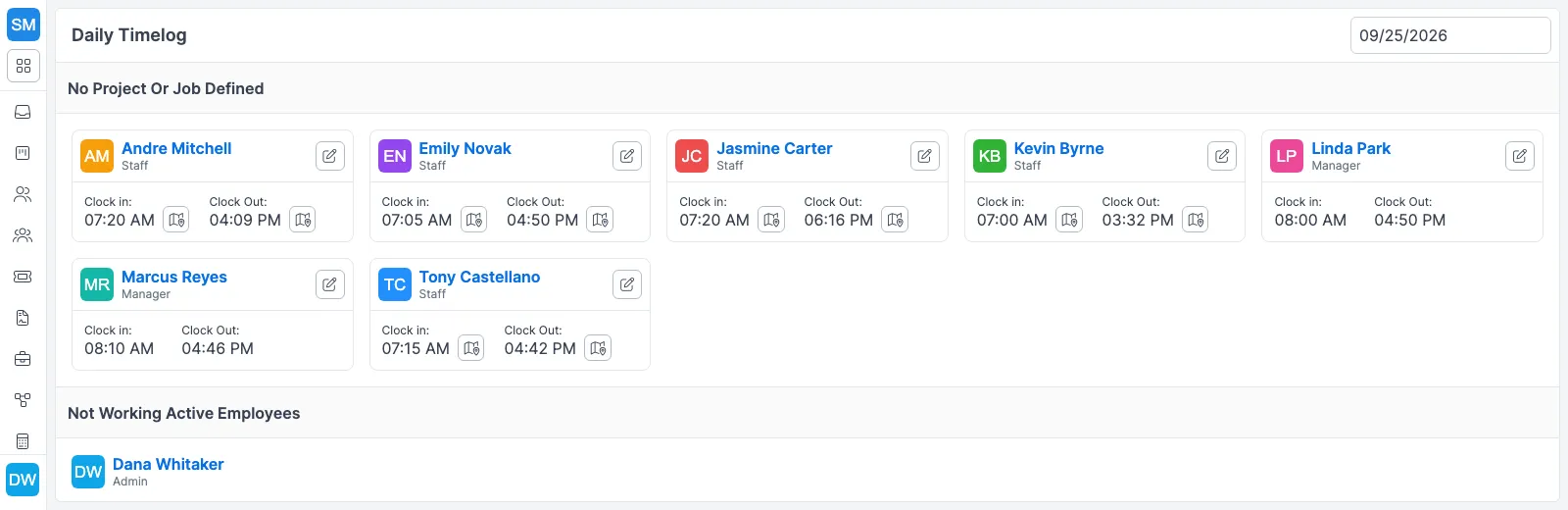
Forz Daily Timelog for 09/25/2026: seven technicians' clock-in and clock-out times, with a map button on each GPS-stamped clock event
The Daily Timelog: who clocked in, when they clocked out, and a map button for the GPS position behind each punch.

The problem with the old way

Timesheets written from memory

Hours filled in on Friday rarely match when the tech got to site or left it, and nothing on the sheet shows where they were when the day started.

Forgotten clock-outs

A shift left open overnight inflates the week unless someone spots it before payroll, and a quiet fix leaves no record of who changed the times.

Hours with no link to the work

When hours sit in a spreadsheet, you can't see which project they belong to or how much of the day went to jobs versus travel and breaks.

How time tracking works in Forz

GPS clock-in from the app or the web

Technicians clock in and out from Forz Mobile or from the Timecard in the web app. Forz saves latitude, longitude, and accuracy at each clock event, and a weak GPS signal flags the entry instead of blocking it.

Automatic lunch deductions and pay

Set the hours threshold and the minutes to deduct in Settings > Modules > Timelog. Forz subtracts the Lunch deduction, then multiplies the remaining hours by the hourly rate saved on the timelog when it was created.

Time assigned to projects by location

At clock-in, Forz looks for a customer site within a configurable radius (0.3 miles by default). If that site has an active project, the timelog is assigned to the project automatically.

Daily timesheets that flag problems

Timesheets puts one line per technician per day with Worked, On jobs, and Not on a job. Labels such as Still clocked in, Overlapping entries, and No job time show who needs attention before payroll runs.

A change history on every edit

Each manual edit records the old times, the new times, who made the change, and when. Automatic rounding adjustments are logged too, and the history cannot be deleted.

Weekly approval and time off

Book PTO, Holiday, Sick, or Unpaid hours against a date. Approve each technician's Monday to Sunday week, which freezes its lunch deductions and pay figures until someone reopens the period.

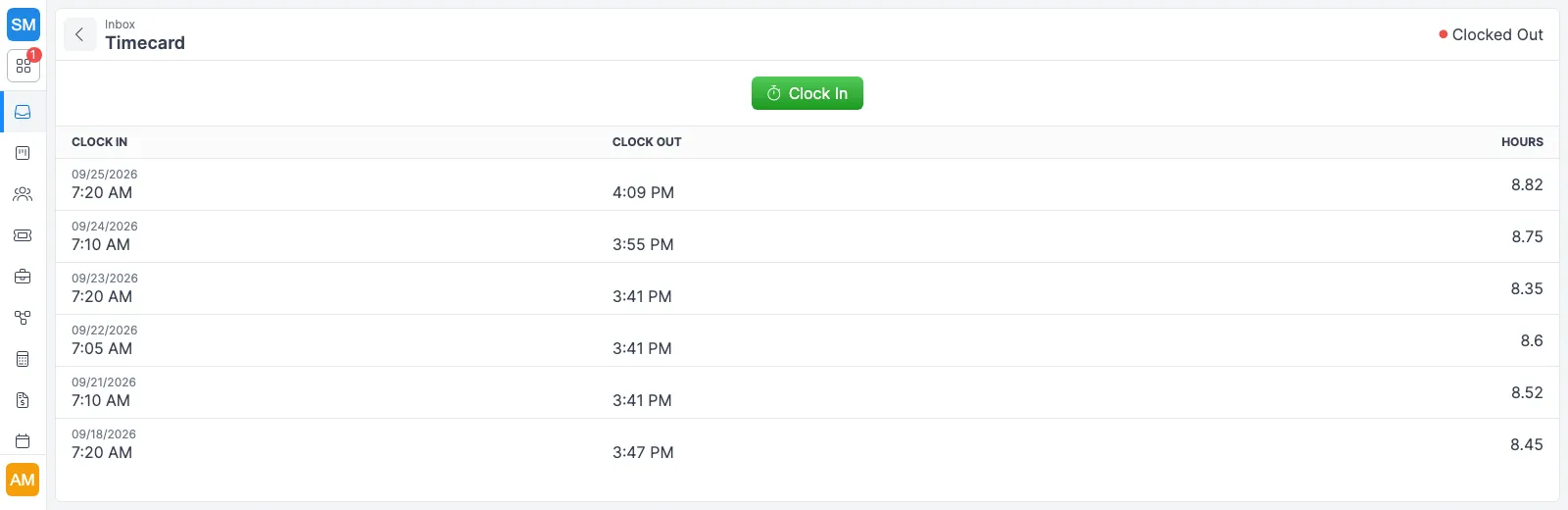
A technician's Timecard in Forz, showing Clocked Out status, a green Clock In button and the last six shifts with clock-in, clock-out and hours
A technician's Timecard: one button to clock in, and the last shifts with their hours.

A technician’s day in Forz, step by step

  1. Clock in at the first site. The technician taps Clock In in Forz Mobile or on the Timecard in the web app. Forz saves the GPS position, the technician’s name, and their hourly rate on a new timelog.
  2. Time finds its project. A background job checks for customer sites within the configured radius (0.3 miles by default). If a site within that radius has an active project, the timelog is assigned to the closest active project.
  3. Job timers run on each job. During the day, technicians start and stop the timer on each work order they work. Those entries feed the On jobs figure in Timesheets.
  4. Clock out. Forz records the end time and GPS position, closes any active activity log, applies the Lunch deduction if the shift passed your threshold, and calculates pay.
  5. The office reviews the day. Timesheets opens on today, with badges for how many technicians are still clocked in and how many job timers are running.
  6. Approve the week. In the Week view, a manager approves each technician’s Monday to Sunday period once the open records are closed.

What the office sees in Timesheets

Timesheets has two scopes. Day shows one collapsed line per technician and is where you repair a record. Week shows a grid with one row per technician and seven day columns, and it is where you approve a pay period. The Needs attention tab collects everyone whose week holds at least one amber label.

Each line shows three figures. Worked is time on the clock after the lunch deduction. On jobs is the total of closed job timer entries. Not on a job is the difference. That last figure describes the records, not the technician: it fills up with travel between jobs, the lunch deduction, clock rounding, and timers nobody started.

LabelWhat it tells you
Still clocked inThe shift has no end time (amber on a past day)
Timer runningA job timer has no end time
Automatically clocked outForz closed the shift on its automatic clock-out schedule, so check the end time
Overlapping entriesTwo job timers cover the same minutes, so On jobs is double-counting
Logged outside the shiftA job timer falls outside every shift that day
No job timeThe technician worked a shift and started no job timer

When a technician forgets to clock out, close the shift from Timesheets instead of editing the record. You type the end time yourself (nothing is pre-filled), and the change history records who closed it. Closing a shift does not close a running job timer. The modal links to Close timer so you can enter that end time separately.

Approval locks the numbers. Before a week is approved, editing a shift re-applies whatever lunch rule is in your settings today. After approval, the lunch deduction and pay figures stay as they were approved, and edits to the times are refused until someone clicks Reopen. A record added after sign-off shows an “added since” badge on the row.

How it plays out in the field

A full-day HVAC install

An HVAC technician arrives at a commercial site at 7:00 AM and clocks in. Forz assigns the timelog to the project on that customer’s site. At 3:30 PM the technician clocks out. With a 30-minute lunch deduction set for shifts over 6 hours, the timelog shows 8 billable hours at the technician’s rate.

A plumber who forgot to clock out

A plumbing technician finished a job at 4:00 PM and never clocked out. The next morning, the Still clocked in label is amber on yesterday’s sheet. The dispatcher clicks Close shift and types 4:00 PM, and the shift’s change history records who closed it.

Training hours logged by the office

An admin needs to record 4 hours of off-site safety training. They create a manual time entry for the technician with the training date and times and assign it to a Training project. Forz calculates the deduction and pay from the same rules as a clocked shift.

Limits worth knowing

  • Pay periods are weekly, Monday to Sunday. Biweekly and semi-monthly periods are not supported yet.
  • An overnight shift belongs to the day it started and is labeled Spans midnight.
  • Clock time can’t be reconciled to individual jobs. A shift’s project comes from where the technician clocked in, so read these figures per technician per day, not per job.
  • Timesheets shows no money. Hourly rates and pay amounts stay on each timelog record.
  • The Manage time permission does not include location tracking. The right to correct someone’s hours is separate from seeing where they drove.

Works with the rest of Forz

Timelogs assigned to a project roll into that project’s Timelogs tab and the Labor cost on its Finance tab, covered on the project management page. Jobs come from scheduling and dispatch, and technicians see their assigned work and the clock in the same mobile app. Time tracking is included in every plan (see pricing). To walk through it with your own crew, book a demo.

Setting it up? The Time Tracking guide and the Timesheets guide walk through each screen.

Frequently asked questions

Yes. When a technician clocks in or out from the Forz mobile app or the web app, Forz records the latitude, longitude, and accuracy of that clock event. If GPS is unavailable or inaccurate, the clock event still saves and is flagged with a GPS error indicator. GPS on clock events is separate from real-time tracking of the team on a map.

You set two values in Settings > Modules > Timelog: the number of hours after which a deduction applies and the number of minutes to deduct. When a shift runs past that threshold, Forz subtracts a deduction labeled Lunch before it calculates pay. No lunch is ever deducted from a booked day off.

Yes. In Timesheets, the manager clicks Close shift on the open row and types the date and time the technician finished. Forz clocks the technician out and adds an entry to the shift's change history recording who closed it. It refuses the request if the end time is before the start or in the future.

Pay periods run Monday to Sunday. A manager approves each technician's week from the Week view, which freezes that period's lunch deductions and pay figures and blocks edits to its times until someone reopens it. Forz will not approve a week that still has an open shift or a running job timer. Biweekly and semi-monthly periods are not supported yet.

Yes. Each timelog stores the hourly rate from the technician's user profile at the time the entry is created. Forz subtracts any automatic deduction from the elapsed time and multiplies the remaining hours by that rate. If the rate changes later, existing timelogs keep the original rate.

Yes. From Timesheets, a manager books time off in hours against a date as PTO, Holiday, Sick, or Unpaid. PTO, Holiday, and Sick hours are paid at the technician's rate, while Unpaid hours are recorded with no pay. Time off is kept out of the Worked figure, so a day off never reads as missing work.

Everything on the Timesheets screen is controlled by one Manage time permission under Settings > Roles & Permissions. It is off for every role by default, so the screen stays hidden until an admin grants it. Viewing a technician's GPS track for the day needs live tracking access on top of that permission.

See time tracking in action

Get a 30-minute personalized demo and watch how it works on your own workflows.

Free standard data import Free 30-minute demo, no commitment