
Project management for contractors: every job, task, and invoice under one project

Group multi-visit work into a project with its own jobs, tasks, purchase orders, time logs, expenses, and invoices. Track tasks on a board, apply task templates, and see billed, paid, and outstanding amounts in one place.

Jobs, tasks, POs, and time logs on one record Included in every plan iOS & Android
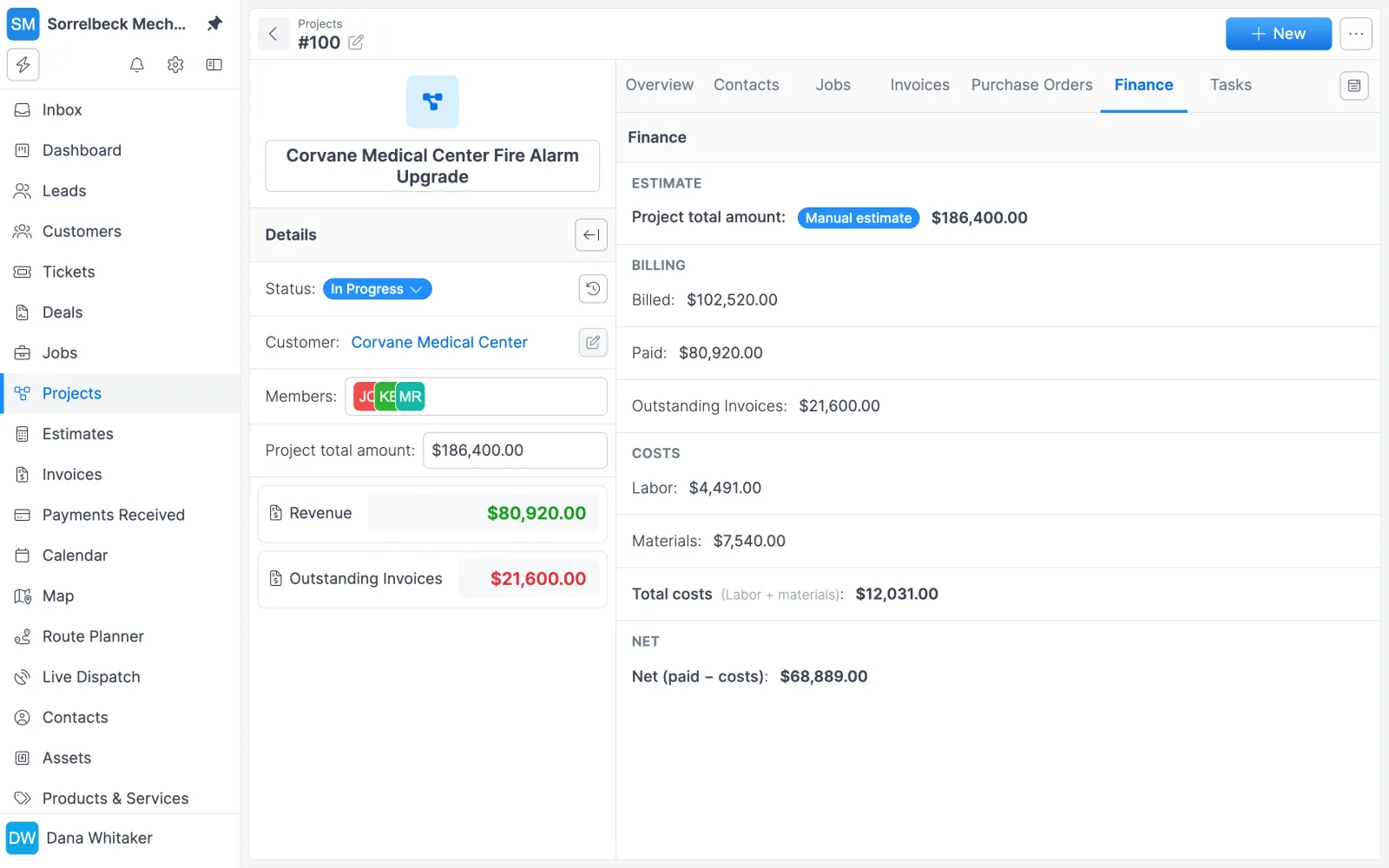
Forz project Finance tab for a $186,400 fire alarm upgrade, showing amounts billed, paid, outstanding, costs and net
A project's Finance tab: billed, paid and outstanding next to labor, materials and net.

The problem with the old way

Big jobs split across loose records

A multi-floor install ends up as a stack of separate work orders, and nobody can say what has been billed or paid on the contract as a whole.

Kickoff checklists rebuilt every time

Each new project starts with someone retyping the same permit, materials, and meeting to-dos, and the step they forget is the one that holds up the crew.

Costs recorded somewhere else

Purchase orders, receipts, and crew hours sit in different places, so pulling the labor and expense totals for one project turns into an afternoon in a spreadsheet.

How project management works in Forz

Customer and internal projects

Create a customer project tied to a customer, service address, and contact, or an internal project for fleet maintenance, training, or office work. Each project gets a sequential number (or a format you set in Settings > Record Numbering) and a status from your project workflow.

Jobs, POs, and expenses on one record

Jobs created from the project's Jobs tab link to it automatically. Purchase orders and files have their own tabs, and expenses assigned to the project count toward its materials cost.

Tasks in a list or on a board

Add tasks to a project, job, customer, lead, ticket, or deal. Assign them, set due dates, and drag cards between status columns. Other users see the changes in real time.

Task templates with due date offsets

Define a set of tasks once, scoped to a record type such as Project or Job, with an optional assignee and a due date offset in days for each item. Apply Template creates every task at once.

Time logs that land on the project

When a technician clocks in within the site radius (0.3 miles by default) of a site with an active project, the timelog is assigned to that project. The office can also assign manual time entries to a project.

A finance tab on customer projects

Billing covers what the project's invoices have billed, what has been paid, and what is still outstanding. Costs adds labor from linked time logs to materials, and Net shows paid minus total costs, next to the project total amount you enter.

How a project runs in Forz

  1. Open the project. On the Projects page, click + New > Customer Project and pick the customer, service address, and contact. Forz assigns a project number and sets the first status in your project workflow (Unscheduled, In Progress, Completed, and Archived by default).
  2. Load the kickoff checklist. On the project’s Tasks tab, click Apply Template and pick a Project template. Each item becomes a task with its assignee and a due date calculated from today.
  3. Add the jobs. Create each visit or phase as a job from the Jobs tab. Every job keeps its own schedule and crew, so it goes through scheduling and dispatch like any other work order.
  4. Order and record materials. Pick the project in the Project field of a purchase order. Receipts and card purchases outside the PO workflow go in as expenses assigned to the project.
  5. Capture the hours. Technicians clock in on site, and time tracking assigns their timelogs to the project when the site has an active one.
  6. Bill by job. Generate an invoice from each finished job with invoicing and payments. The project’s Invoices and Finance tabs pick it up.
  7. Close it out. Move the project to Completed, then Archived when the file is done.

What each project tab holds

TabWhat you see
OverviewName, status, number, customer, address, contact, description, labels, and a financial summary card
JobsEvery job linked to the project, plus a button to create new ones
InvoicesInvoices generated from the project’s jobs, with status, amounts, and payment status
Purchase OrdersMaterials and supplies ordered for the project
FinanceBilling (billed, paid, outstanding invoices), Costs (labor, materials, total costs), Net (paid minus costs), and the project total amount
TasksProject tasks in list and board views
TimelogsTime entries logged against the project, with hours and pay amounts
FilesDocuments uploaded to the project

A Contacts tab appears once two or more contacts are linked. Internal projects show only overview, tasks, and files.

Tasks and templates

Tasks are the to-do layer across Forz. Each one gets a sequential number, starts in the first status of your task workflow, and notifies the assignee when it is assigned to someone else. The board view shows one column per status, and it also appears on a project’s or job’s Tasks tab, scoped to that record. Deleted tasks go to the trash bin and can be restored.

Templates keep repeat work consistent. Names are unique within a record type, items can be reordered by dragging, and editing a template changes only future applications. Tasks already created from it stay as they are.

How contractors use projects

A three-floor HVAC installation

An HVAC contractor wins a contract to install systems across a 3-story office building. They create the customer project “ABC Corp HVAC Installation” and add three jobs, one per floor of ductwork. Each job has its own schedule and technicians, and the Finance tab shows billed and paid amounts across all three.

A commercial electrical kickoff

An electrical contractor keeps a “Commercial Project Kickoff” template scoped to Project: verify permit applications submitted, order materials from supplier, schedule the pre-construction meeting, assign the lead electrician, and upload site plans to project files. Every new commercial project gets it applied in the first week.

Annual inspections across five buildings

A fire protection company creates one project for a property management client with inspections at five buildings. Each building is its own job and gets its own invoice as the inspection is completed. The project overview shows the outstanding balance, which is what is still owed across all five buildings.

Safeguards

You can’t delete a project that still has jobs, invoices, or purchase orders linked to it. A deleted project moves to the trash bin. Deleting a parent record also removes its linked tasks, so archive a finished project rather than deleting it.

Works with the rest of Forz

Projects pull from the same jobs, invoices, and timelogs as the rest of the platform, so there is nothing to sync. For company-wide numbers on jobs, estimates, and invoices, use reporting and dashboards. Technicians see their assigned jobs in the mobile app. Projects are included in every plan (see pricing). To walk through one with your own jobs, book a demo.

Setting it up? The Projects guide and the Task Templates guide walk through each screen.

Frequently asked questions

Yes. A customer project groups the jobs, tasks, invoices, purchase orders, estimates, time logs, expenses, and files for one engagement. Jobs created from the project's Jobs tab link to it automatically, and the Invoices tab shows every invoice generated from those jobs. Each job keeps its own schedule and assigned technicians.

Pick the project in the Project field of a purchase order, and the order appears on the project's Purchase Orders tab. Receipts and card purchases made outside the PO workflow go in as expenses assigned to the project, and they count toward its costs on the Finance tab.

A task template is a reusable set of tasks scoped to one record type: Customer, Deal, Job, Lead, Project, or Ticket. Each item has a title, an optional assignee, and an optional due date offset in days. Applying the template from a record's Tasks tab creates all of its tasks at once, and you can apply it again for a recurring checklist.

A customer project's Finance tab has three computed sections. Billing shows the amount billed on the project's invoices, the amount paid, and the outstanding invoices. Costs shows Labor (the pay amounts on linked time logs), Materials (expenses assigned to the project), and Total costs. Net is the amount paid minus total costs. Above them sits the project total amount, the one figure you enter by hand.

Yes. Internal projects are not tied to a customer and fit work such as fleet maintenance, office renovations, training programs, or equipment upgrades. They show a simplified set of tabs: overview, tasks, and files.

Forz flags a task as overdue when its due date is before today and its status is not Completed. The check runs every time the page loads, and completing the task clears the flag. You can filter the Tasks list by due date and sort by it to see what is late.

Yes, in two ways. Applying a task template creates a full set of tasks in one action. A workflow can also add a task to a job with the Create Job Task action, for example a six-month follow-up task whenever a maintenance job is marked complete.

See project management in action

Get a 30-minute personalized demo and watch how it works on your own workflows.

Free standard data import Free 30-minute demo, no commitment