
Purchase order software for contractors: order the parts, receive the stock, pay the bill.

Email POs to vendors or send a PDF, receive partial shipments into the right warehouse or van, and generate bills from what came in with the PO pricing already on them. Record vendor payments and assign each expense to its project.

Bills built from received quantities Included in every plan iOS & Android
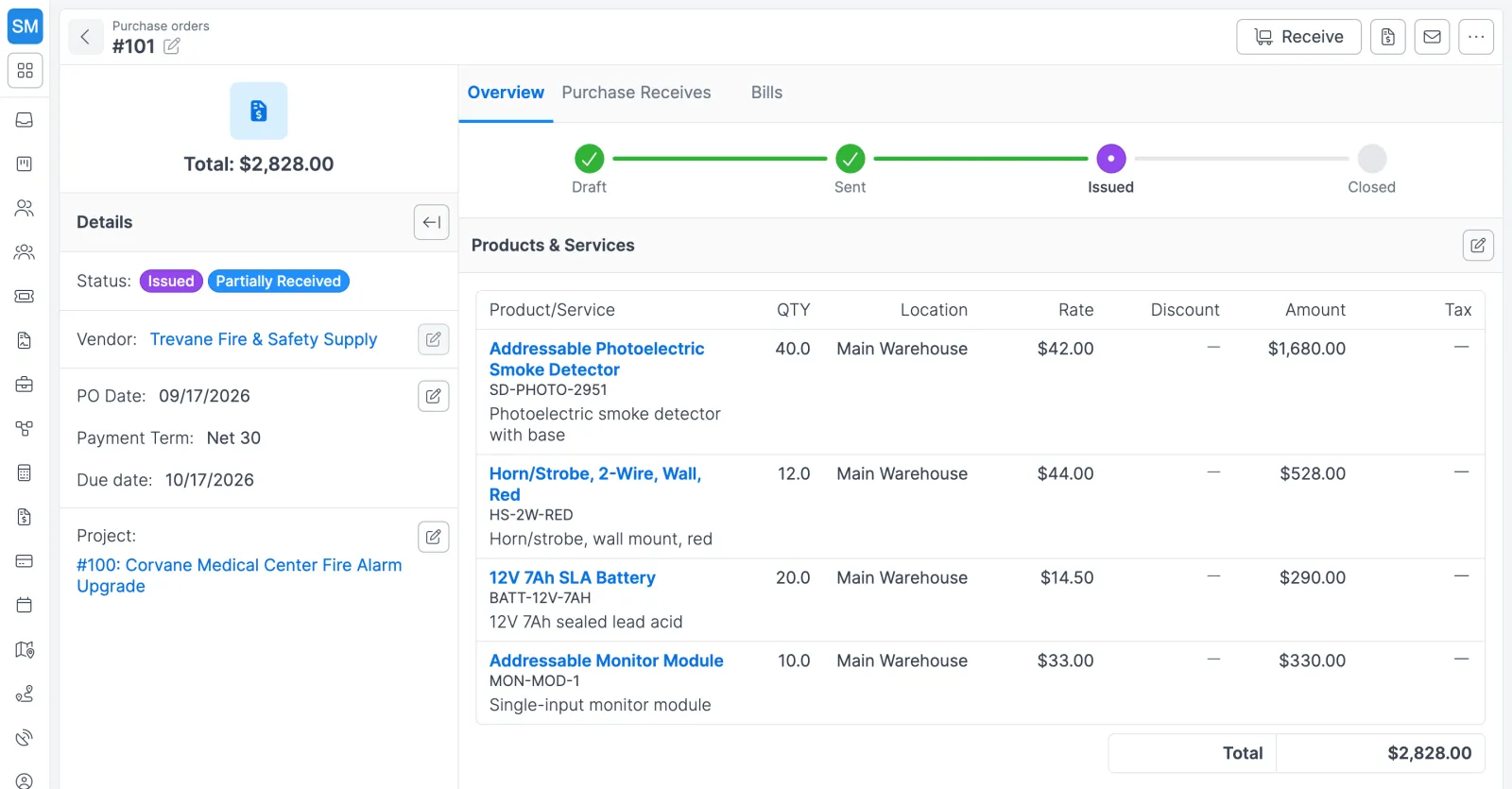
Purchase order #101 to a fire safety supplier: smoke detectors, horn/strobes, batteries and monitor modules, $2,828 total
A purchase order partway through receiving.

The problem with the old way

Orders placed by phone and text

Parts get ordered in a phone call to the supply house or a text to the rep. Nobody can pull up what was ordered, at what price, or for which job.

Paying for parts that never showed up

A shipment arrives short, the rest comes next week, and the vendor bill arrives for the full order. Without receipts against the PO, the office pays the invoice total and hopes it matches.

Purchases disconnected from the work

Materials for a big install are spread across POs, card receipts, and supply-house runs. When the project manager asks what was bought for the job, someone digs through email.

How purchase orders works in Forz

Vendor records with full history

Store each supplier's organization, address, and contacts, with its own sequential vendor number. The profile shows open POs and open bills up front, plus every past PO, bill, and uploaded file. Import vendor lists from a CSV file.

POs with line items and terms

Pick a vendor, set the PO date, payment term, and due date, and add line items with quantity, unit price, discount, and tax rate. Forz numbers each PO in sequence (for example #101), runs it through your own statuses, and can link it to a project.

POs from sales orders and bills

Click New > Purchase Order on a sales order and Forz copies the line items, tax rate, and payment term, showing only the quantities not yet ordered. You can also build a PO from an existing vendor bill for tracking.

Send to the vendor

Email the PO from Forz with the vendor's email filled in and your Purchase Orders email template, or export a PDF. Sending moves the PO from Draft to Sent and logs a note with the recipient and time.

Receive partial shipments

Click Receive on the PO and enter the quantity that arrived for each line. Stock goes into the inventory location set on that PO line, the PO shows partially or fully received, and you can't receive more than was ordered.

Bills generated from receipts

Click Create Bill, pick the receipts to include, and Forz creates a bill with the received quantities, PO pricing, vendor, payment term, and tax. Receipts you leave out stay available for a later bill.

Vendor payments and expenses

Click Made Payment on a bill to record a check, ACH, or credit card payment, until the bill reads Paid. Reports > Expenses lists costs outside the PO workflow, such as fuel or a supply-house run, and you assign each one to a project.

How purchasing works in Forz

In the Forz web app, Vendors, Purchase Orders, and Bills each have their own list in the sidebar (under More until you add them), and expenses sit under Reports. A typical order runs like this:

  1. Add the vendor. The organization name is the only required field. Enter a contact name and Forz creates the vendor’s primary contact from it.
  2. Create the PO. Start from the Purchase Orders list, from the vendor’s profile (the vendor is pre-filled), or from a sales order that needs materials. Link it to a project if the parts are for one.
  3. Send it. Email the PO from Forz or export a PDF. The status moves to Sent and the record notes when it went out.
  4. Receive what arrives. Click Receive for each delivery and enter the quantities per line. Stock goes up at the inventory location set on each PO line.
  5. Generate the bill. Select one or more receipts and Forz builds the bill from the received quantities and PO pricing. Mark it Open and it shows up in open-bill views and aging reports.
  6. Pay it. Record payments until the balance hits zero and the bill reads Paid.

Four records carry the work, and each does something different:

RecordWhere it livesWhat it does
Purchase orderPurchase Orders listA commitment to buy. No change to stock.
Purchase receiveThe PO’s Purchase Receives tabRecords what arrived and adds it to stock at each line’s location
BillBills listWhat you owe the vendor, with payments and a running balance
ExpenseReports > ExpensesCosts outside the PO workflow, assignable to a project

Purchase orders, bills, and vendors get plain sequential numbers (#100, #101, and so on). Settings > Record Numbering can give each of them a custom format with a prefix, year, or month, such as PO2609-001. Statuses come from your own Status Options, custom fields work on POs and bills, and saved views work on the Purchase Orders, Bills, and Vendors lists.

How contractors use it

HVAC: ordering equipment for a commercial install

Before scheduling a commercial HVAC installation, the dispatcher needs a condensing unit and line set from the distributor. She creates a PO for ABC HVAC Supply with a 5-ton condensing unit, a 50 ft line set, and two filter driers, links it to the customer’s project, and clicks Mark as sent. The PO now appears on the project’s Purchase Orders tab.

Plumbing: a shipment that arrives in two parts

A plumbing contractor orders 20 copper fittings and 10 PVC couplings. The copper fittings ship first, so the office records a receipt for those 20. The couplings arrive the next week and get a second receipt. The office can generate one bill from both receipts or one bill per shipment, and each bill covers only what came in.

Electrical: reviewing a supplier before a pricing talk

Before negotiating prices with Valley Electric Supply, an electrical contractor’s manager opens the vendor profile. The Purchase Orders tab lists every PO, open and completed, and the Bills tab shows payment history and outstanding balances.

Works with the rest of Forz

  • Inventory management picks up every receipt at the location set on each PO line, and counts a bill and a receipt for the same delivery once.
  • Projects list their purchase orders and count their expenses as materials on the Finance tab.
  • Invoicing sells the same catalog items you buy on POs, and stock leaves when the customer invoice posts.
  • The QuickBooks Online integration syncs items two-way, including unit cost and quantity on hand.

Setting it up? The Purchase Orders guide and the Bills guide walk through each screen.

Frequently asked questions

Yes. Open the sales order and click New > Purchase Order. Forz copies the line items, tax rate, and payment term, you confirm the vendor, and the PO is linked to the sales order. The line items reflect only the quantities that have not been ordered yet, so you can order a partial fulfillment.

Open the PO, click Receive, and enter the quantity that arrived for each line. The PO shows as partially received until every quantity matches, and you add a second receipt when the rest arrives. Service items are excluded from receiving, and you can't receive more than the quantity ordered on a line.

Yes. Click Create Bill on the PO and select the receipts to include. Forz creates a bill linked to the PO with the received quantities and PO pricing, and it inherits the vendor, payment term, and tax settings. You can bill all receipts at once or create a separate bill per shipment.

Creating a PO does not change stock, because a purchase order is a commitment to buy. Receiving against the PO increases Stock on Hand at the inventory location set on each PO line. If a bill and a receipt cover the same delivery, Forz counts the stock once.

Yes. A purchase order can be linked to a project, and the project's Purchase Orders tab lists every PO raised for that work. Expenses such as fuel or parts bought at a supply house can be assigned to a project from Reports > Expenses, and they count toward materials on the project's Finance tab.

Open the bill, click Made Payment, and enter the amount, date, and method (for example check, ACH, or credit card). Forz reduces the balance after each payment, lists it on the Payments tab, and marks the bill Paid when payments equal the bill total. A payment can't exceed the remaining balance.

Yes. Items sync two-way, including unit cost, quantity on hand, and the expense and inventory asset accounts. Customers and invoices also sync two-way, and tax rates, accounts, and payment methods come over from QuickBooks. Purchase orders and bills stay in Forz.

See purchase orders in action

Get a 30-minute personalized demo and watch how it works on your own workflows.

Free data migration Free 30-minute demo, no commitment