
What syncs, and in which direction
| Forz record | QuickBooks Online record | Direction |
|---|---|---|
| Customer | Customer | Two-way |
| Item | Item (Service or Inventory) | Two-way |
| Invoice | Invoice | Two-way |
| Tax rate | Tax Rate or Tax Code | QuickBooks to Forz |
| Account | Account | QuickBooks to Forz |
| Payment method | Payment Method | QuickBooks to Forz |
Three more pieces of data move one way. Payments you record in Forz are sent to QuickBooks Online. Expenses sync as Purchase transactions. A customer’s balance syncs from QuickBooks to Forz.
QuickBooks Service items become Service items in Forz, and every other QuickBooks item type becomes an Inventory item. Forz matches records by their QuickBooks ID, not by name. If a customer already exists in both systems, link the two records before you import, or you’ll end up with duplicates.
Connecting QuickBooks Online
- Check access. You need the Admin role in Forz, plus admin access to a QuickBooks Online company that has at least one income account.
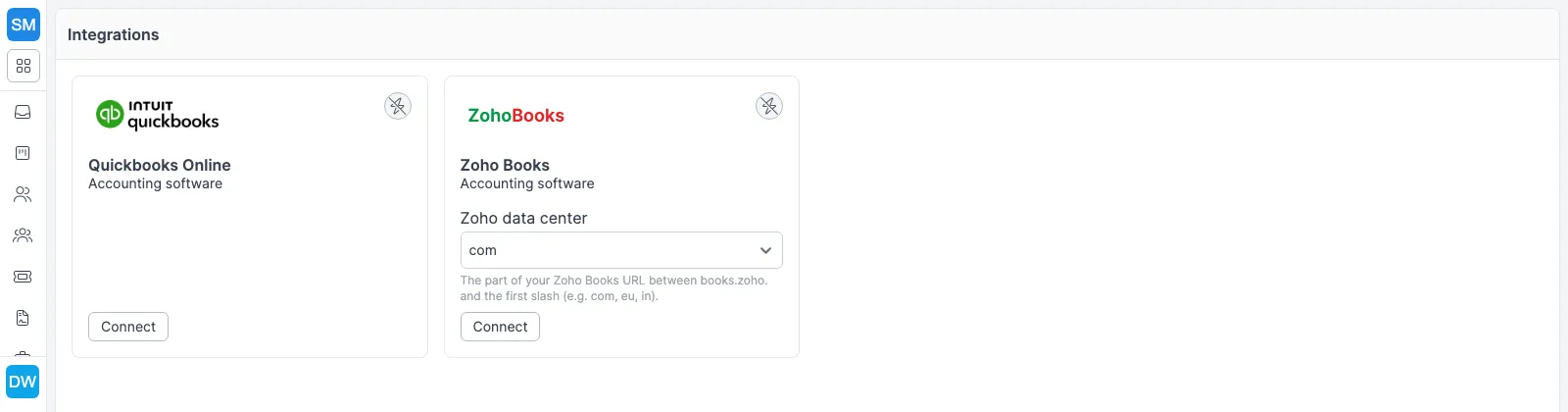
- Connect. In Settings > Integrations, click Connect on the QuickBooks Online card, sign in to Intuit, select the company and click Authorize.
- Let the import run. The card shows a Connected badge and the first import starts in the background. It pulls all customers, items, accounts, tax rates and payment methods, and can take several minutes on a large QuickBooks file.
- Review. Check the imported customers and items. Import Data from QBO, behind the gear button on the QuickBooks Online card, pulls again later: it creates customers that aren’t in Forz yet and updates the linked ones.
- Bill from Forz. New customers and invoices go to QuickBooks from here on.
How a job becomes a QuickBooks invoice
A tech finishes the work and logs parts and labor on the job. The office clicks Generate Invoice, and Forz builds a draft with the customer, contact, service address, payment term and every line item from the job. When the invoice is saved for a linked customer, Forz sends it to QuickBooks Online with the customer reference, line items, due date and invoice number.
A few rules keep this clean. The customer and every item on the invoice must already exist in QuickBooks. An invoice has to be at least 1 minute old before Forz pushes it. If QuickBooks rate-limits the connection, Forz retries on its own after the limit window, typically 60 seconds.
Checks and cash you record against the invoice in Forz are sent to QuickBooks Online as payments. Customers can also pay online through Stripe, which marks the invoice Paid or Partially Paid automatically.
Three contractors, three setups
HVAC: the first connection
An HVAC contractor connects QuickBooks Online. The first import brings in its customers, service items such as filter replacements, compressor repair and duct cleaning, and inventory items such as thermostats and refrigerant. The office manager checks that customer addresses match, then starts invoicing in Forz, and those invoices appear in QuickBooks.
Plumbing: a water heater install
After a water heater installation, the dispatcher invoices the job in Forz: the unit, the labor and the copper fittings, with the applicable tax rate. Forz sends the invoice to QuickBooks with the customer reference and each line, and the bookkeeper sees it there without retyping it.
Electrical: combined sales tax
An electrical contractor’s QuickBooks file has a tax code, CA Sales Tax, that groups a 6.0% state rate and a 1.25% local rate. Forz imports it as one tax rate, CA Sales Tax at 7.25%, which the office can then pick on invoices and estimates.
Details your bookkeeper will ask about
- Billing address. Changing a customer’s primary site address updates the customer record and the QuickBooks billing address. This sync is automatic and can’t be turned off.
- Tax history. Tax rates don’t flow back to QuickBooks. If you edit a rate in Forz, Forz archives the old version, so past invoices keep the rate they were issued with.
- Invoice numbers. Forz sends its own invoice number to QuickBooks Online, and the sync never replaces it.
- Balances. A customer’s balance syncs from QuickBooks to Forz. If the two differ, check QuickBooks first, then re-sync from Settings > Integrations.
Works with the rest of Forz
- Invoicing and payments: recurring invoices, payment terms and online card or ACH payment through Stripe.
- Inventory management: quantity on hand and reorder point are part of the item sync, and Forz tracks stock at each inventory location.
- Purchase orders: buy from vendors against the same item list that syncs with QuickBooks.
- Work orders: parts and labor logged on a job carry into its invoice.
- Reporting and dashboards: report on invoices and customers inside Forz without exporting from QuickBooks.
- Stripe payments, Twilio SMS and single sign-on are covered on the integrations page.
Setting it up? The QuickBooks Online Integration guide walks through each screen.