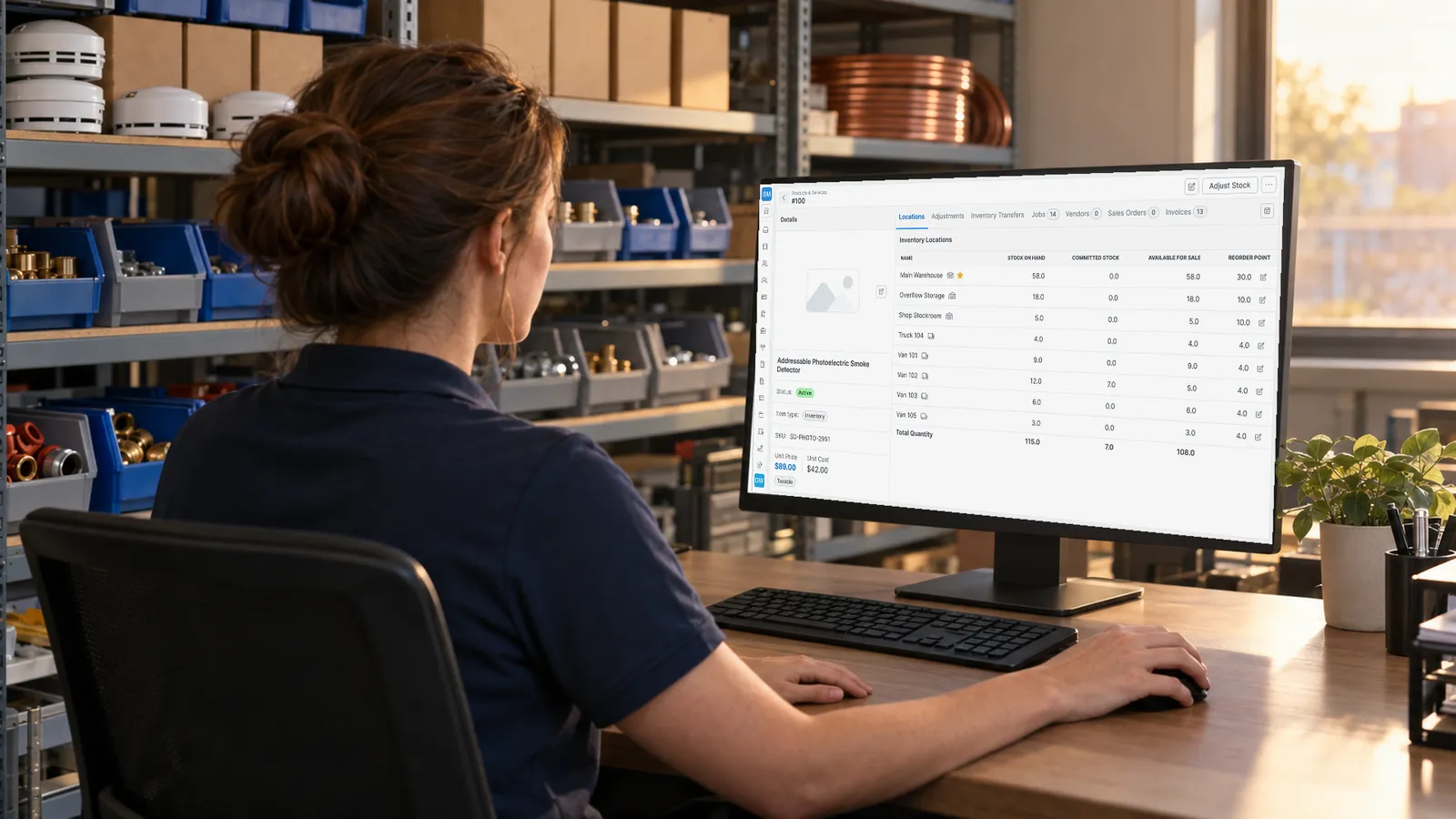
Field service inventory management for your warehouse, every service van, and each job site.

See stock on hand, committed, and available at every location. Nobody types a quantity: Forz recalculates it when a PO is received, a bill or invoice posts, a transfer completes, or someone logs an adjustment.

Stock tracked by warehouse, van, and job site Included in every plan iOS & Android
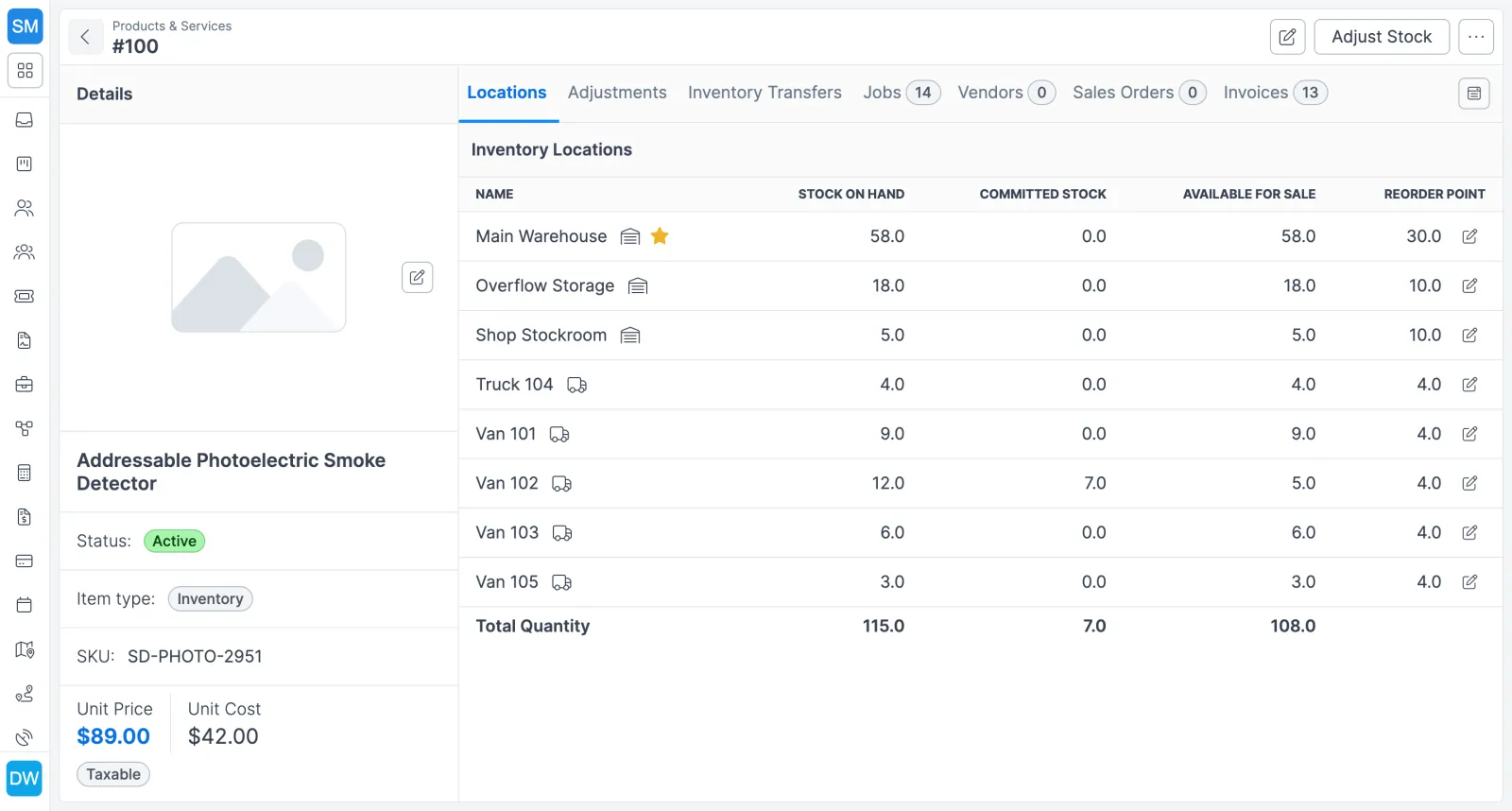
Forz item page for a smoke detector showing stock on hand, committed and available by warehouse, stockroom and van
One item's stock by location: on hand, committed and available in the warehouse, stockroom and each van.

The problem with the old way

Nobody knows what's on the trucks

The warehouse count lives in a spreadsheet and van stock lives in each tech's memory. Dispatch sends a tech who doesn't carry the part, and the job turns into a supply-house run.

Counts that drift with no paper trail

Someone overwrites a number in the spreadsheet and nobody knows who changed it, when, or why. By the next physical count, the screen and the shelf no longer agree.

Reordering after the bin is empty

Without a threshold for each location, low stock shows up when a tech opens an empty bin on site. The order goes out late and the job waits on the part.

How inventory management works in Forz

Stock by location, vans included

Set up warehouses, storage rooms, service vehicles, and job-site containers as inventory locations. Every item shows Stock on Hand, Committed Stock, Available for Sale, and a Reorder Point per location, with a truck icon marking the mobile ones.

Quantities driven by the paperwork

Receiving a purchase order adds stock at the location set on each PO line. An invoice leaving Draft deducts it from each line item's location, and voiding the invoice puts it back. Parts on an open job or sales order count as committed, not consumed.

Transfers between warehouse and trucks

Restock a van from the warehouse or bring job-site surplus back to the shelf. A transfer stays In Transit until someone clicks Mark as transferred, and Forz rechecks source stock at that moment and records who completed it and when.

Adjustments with a reason attached

Enter the number you counted and Forz works out the difference, or type the write-off directly. Each adjustment logs who made it, a reason from the list you define (for example Damaged, Lost, or Count Correction), the quantity, and a description.

Reorder points for each location

A warehouse that resupplies three vans needs a higher threshold than the vans do, so each location keeps its own. Forz checks them nightly and emails opted-in users once per day per location when stock is at or below the threshold.

Warnings before you overpromise

Add a part to a job, invoice, or sales order when the location is short and Forz shows the quantity available against the quantity requested. The warning doesn't block the save, because the tech may have already fitted the part.

A catalog built for parts

Items are Inventory, Non-Inventory, or Service. Store SKU, unit cost, unit price, unit (PCS, BOX, FT, LB), category and subcategory, and a bin location code like A3-14. Import the catalog from a CSV file or pull it in from QuickBooks Online.

Load the truck from a checklist

Truck Load builds a bin-sorted checklist of every Inventory part each technician's jobs need that day. Techs check lines off by tap or by scanning a barcode, SKU, or bin code (phone camera works), then Confirm Load before leaving the yard. Short lines are listed by name and bin, and the confirmed quantities are frozen as a record of what left with the truck. Loading does not change inventory levels.

Pick Lists for the warehouse

With the optional Pick Lists module (support turns it on), warehouse staff pick each tech's parts ahead of time, one tech at a time or with Pick For All. The tech then sees Picked, Not picked, or Added after pick on each line and only has to verify and load. Truck Load and Pick Sheet reports export to PDF or CSV, filtered by date and tech.

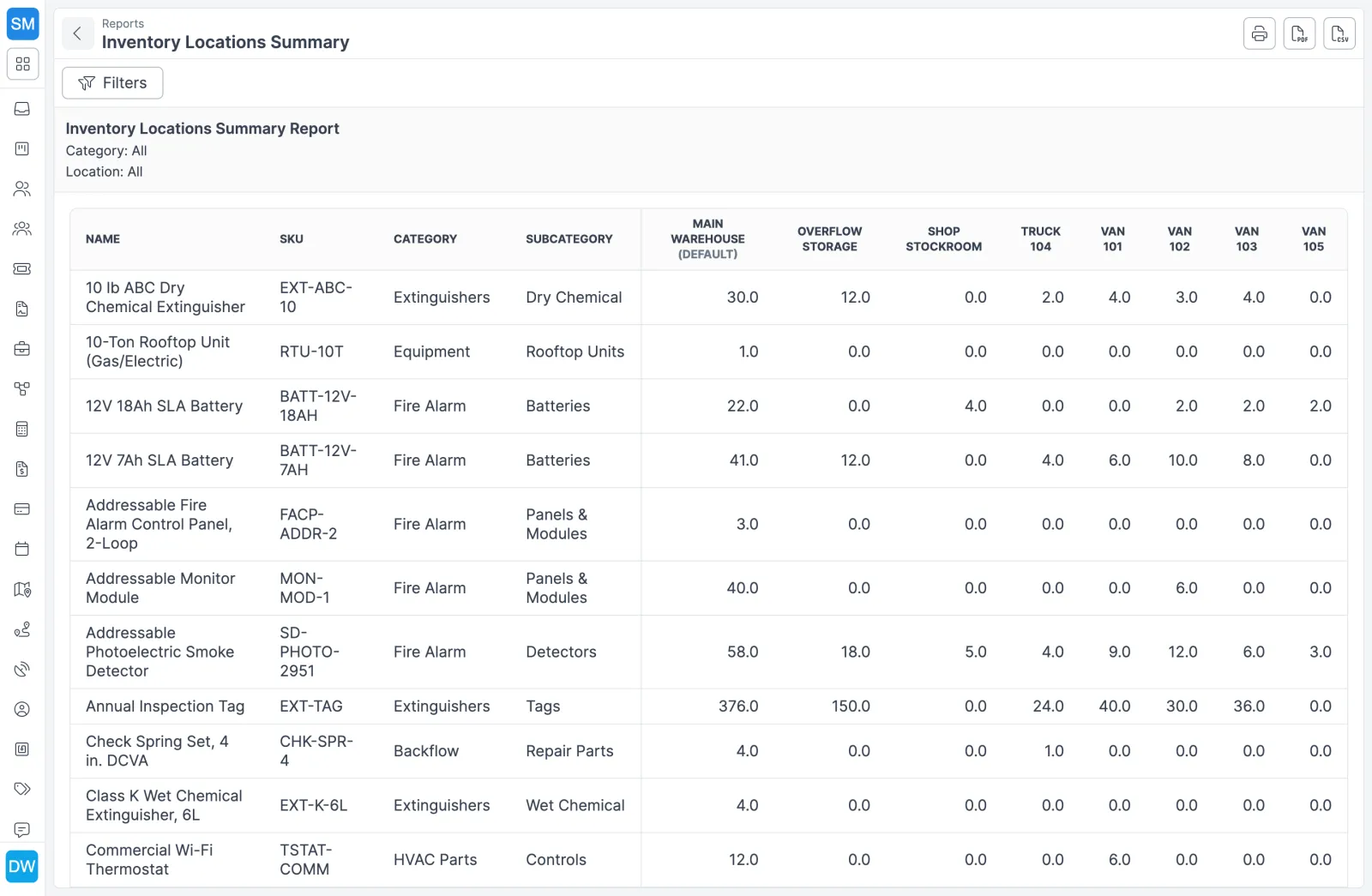
Inventory Locations Summary report showing on-hand stock for each part across the warehouse, stockroom, truck and vans
The Inventory Locations Summary report shows every part across every location.
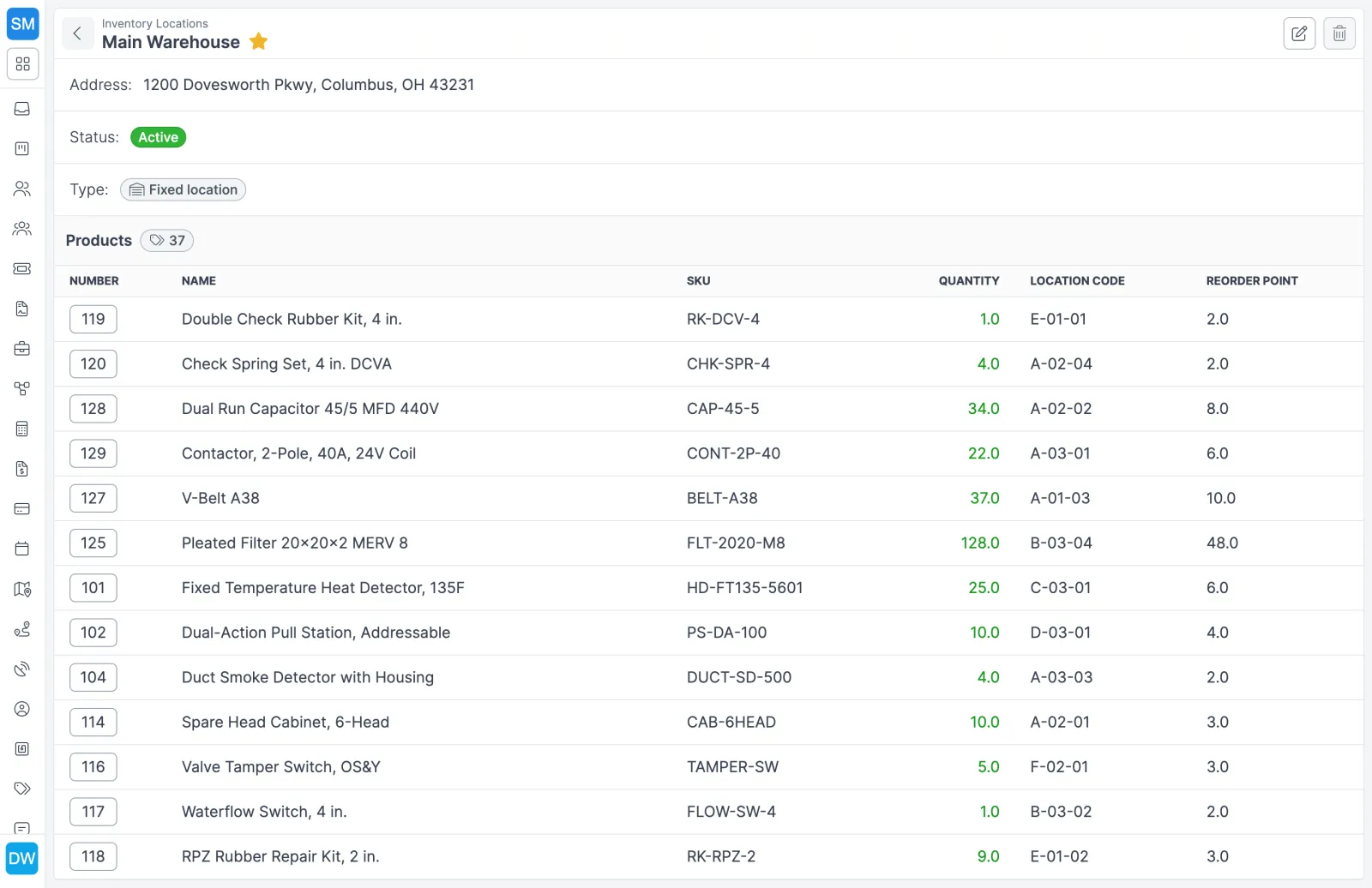
Main Warehouse inventory location in Forz, listing HVAC and fire-protection parts with SKU, quantity, bin code and reorder point
A location's parts list with SKU, quantity, bin code and reorder point.

How stock moves through Forz

Forz never lets you type a stock quantity directly. The number at each location is a running total that Forz recalculates whenever a document moves stock, so every change traces back to a purchase order, bill, invoice, transfer, or adjustment you can open.

EventEffect on Stock on Hand
Receiving against a purchase orderIncreases at the location set on each PO line
A bill leaving DraftIncreases, unless a receipt already recorded the same goods
An invoice leaving DraftDecreases at each line item’s location
Completing a transferDecreases at the source, increases at the destination
Saving an adjustmentIncreases or decreases at the chosen location
Creating a purchase orderNo change (it’s a commitment to buy)
Adding parts to a job or sales orderNo change (counted as Committed Stock)
A Draft or Void invoice or billNo change

A typical part follows four steps:

  1. It arrives. You receive a purchase order, and the goods go into the inventory location set on each PO line. Partial deliveries are fine. Receive what came today and the rest when it shows up.
  2. It gets claimed. A dispatcher adds the part to a work order and chooses the location it comes from. The unit now counts as Committed Stock, so nobody promises it to another customer.
  3. It leaves. When the job becomes an invoice and that invoice leaves Draft, Forz deducts the part from its location. Void the invoice and the stock comes back.
  4. The count gets checked. At a cycle count, open the item, click Adjust Stock, choose the location, and enter what you counted. Forz calculates the difference and saves it with your reason and description.

Warehouses, vans, and job sites

With the Advanced Inventory module enabled for your account, every place you keep stock becomes a location: the main warehouse, a second warehouse, each service vehicle, a container at a long-running job. Forz creates a Main Warehouse location when your account is set up. Add a location and every active Inventory item gets a stock record there, starting at zero. Add an item and it gets a record at every active location.

Forz also protects your history. You can’t deactivate a location that still holds stock, your primary location, or your last active location. A location that has ever appeared on a transfer, adjustment, receipt, or document line can be deactivated but not deleted. Role permissions decide who sees the Locations tab, who can adjust stock, and who can create transfers.

Without the module, Forz tracks a single quantity per item, and receiving, invoicing, and adjustments work the same way.

How contractors use it

Fire protection: finding the right extinguisher

A fire protection company stocks extinguishers and smoke detectors at a central warehouse and in three service vans, set up as four locations. Before dispatching a tech, the dispatcher opens the item’s Locations tab to see which van carries the right model. At the quarterly count, the system shows 85 smoke detectors and the shelf holds 82. One adjustment of -3 at Main Warehouse, with the note “Q1 cycle count, shelf C4,” fixes the number and leaves a record of why.

Plumbing: restocking a van after a busy week

Van 3 at a plumbing shop is low on PEX fittings after a week of installs. The dispatcher creates a transfer from Main Warehouse to Van 3 for 50 half-inch PEX couplings and 25 three-quarter-inch PEX elbows. The warehouse manager picks the parts and loads the van, and the dispatcher clicks Mark as transferred. Only then do both locations change.

HVAC: staging equipment for an install

An HVAC contractor installing 15 units in a new apartment building creates a transfer from Main Warehouse to a job-site location for 15 condensing units, 15 air handlers, and 300 ft of copper lineset. The transfer stays In Transit while the equipment is on the road, and the job-site location shows it as In Transit until someone checks it in and completes the transfer.

Truck Load and Pick Lists

Before a tech leaves the yard, Truck Load shows every Inventory part their jobs need that day, sorted by bin. They check each line off by tap or scan, then Confirm Load. Short lines are listed by name and bin, and the confirmed quantities stay as a record of what went on the truck.

Loading does not change inventory levels, and it works with or without Advanced Inventory. When support enables the optional Pick Lists module, warehouse staff pick parts ahead of time (one tech or Pick For All). The tech then sees what was picked and only has to verify and load. Office staff can export the Truck Load and Pick Sheet reports to PDF or CSV.

Works with the rest of Forz

  • Purchase orders bring stock in. When a bill and a PO receipt cover the same delivery, Forz counts the stock once.
  • Work orders and sales orders hold parts as Committed Stock until they are invoiced.
  • Invoicing is where stock leaves the shelf, at the location on each line item.
  • The QuickBooks Online integration syncs items two-way, including quantity on hand and reorder point.
  • Custom price groups give specific customers their own pricing tier, set as a multiplier or a fixed price.
  • Tools, equipment, and vehicles you hand out to techs are assets, not stock. Track them with asset tracking, and technicians accept or decline each assignment in the mobile app.

Setting it up? The How Inventory Works guide follows a part through every screen, and the Stock Levels guide covers locations and reorder points.

Frequently asked questions

Yes. Truck Load gives each technician a checklist of the Inventory parts their jobs need that day, sorted by warehouse bin. They check lines off by tapping or by scanning a barcode, SKU, or bin code, then Confirm Load. Short lines show by name and bin. Confirmed quantities are frozen as a record of what left the yard. Loading does not move stock to the van. An optional Pick Lists module lets the warehouse pick ahead of time.

Yes. Once the Advanced Inventory module is enabled for your account, Settings > Inventory Locations appears, and you add each van or truck there as an inventory location. Every Inventory-type item gets its own stock record and reorder point at each vehicle, and you restock vans with transfers from the warehouse.

Receiving against a purchase order, a bill leaving Draft (unless a receipt already recorded the same goods), an invoice leaving Draft, completing a transfer, and saving an inventory adjustment. Creating a purchase order or adding parts to a job does not change Stock on Hand. Parts on a job or sales order that has not been invoiced count as Committed Stock instead.

Stock on Hand is what is physically at the location right now. Available for Sale is Stock on Hand minus Committed Stock (parts on jobs and sales orders that have not been invoiced) minus anything still in transit to that location. The gap between the two is stock another job has already claimed.

Yes. Each location has its own reorder point. Forz checks them nightly and emails everyone who opted into low-stock notifications when a location is at or below its threshold, once per day per location. The items list also flags an item when its total across all locations is at or below the item's reorder point, or at zero.

Items sync two-way between Forz and QuickBooks Online, including name, type, unit cost, unit price, quantity on hand, reorder point, and the income, expense, and inventory asset accounts. QuickBooks Service items map to Forz Service items, and every other QuickBooks item type maps to Inventory. Invoices sync two-way as well.

Forz warns you when a job, invoice, or sales order asks for more than the location has available, then lets you continue. Invoicing more units than a location holds is allowed, so billing is never blocked by a paperwork gap. A negative Stock on Hand tells you a receipt or an adjustment is still outstanding.

Yes. Inventory, multi-location tracking, and transfers are part of every plan at $50/user/month billed annually or $60 month-to-month, with a 10-user minimum. Multi-location tracking and transfers run on the Advanced Inventory module, enabled for your account.

See inventory management in action

Get a 30-minute personalized demo and watch how it works on your own workflows.

Free standard data import Free 30-minute demo, no commitment