
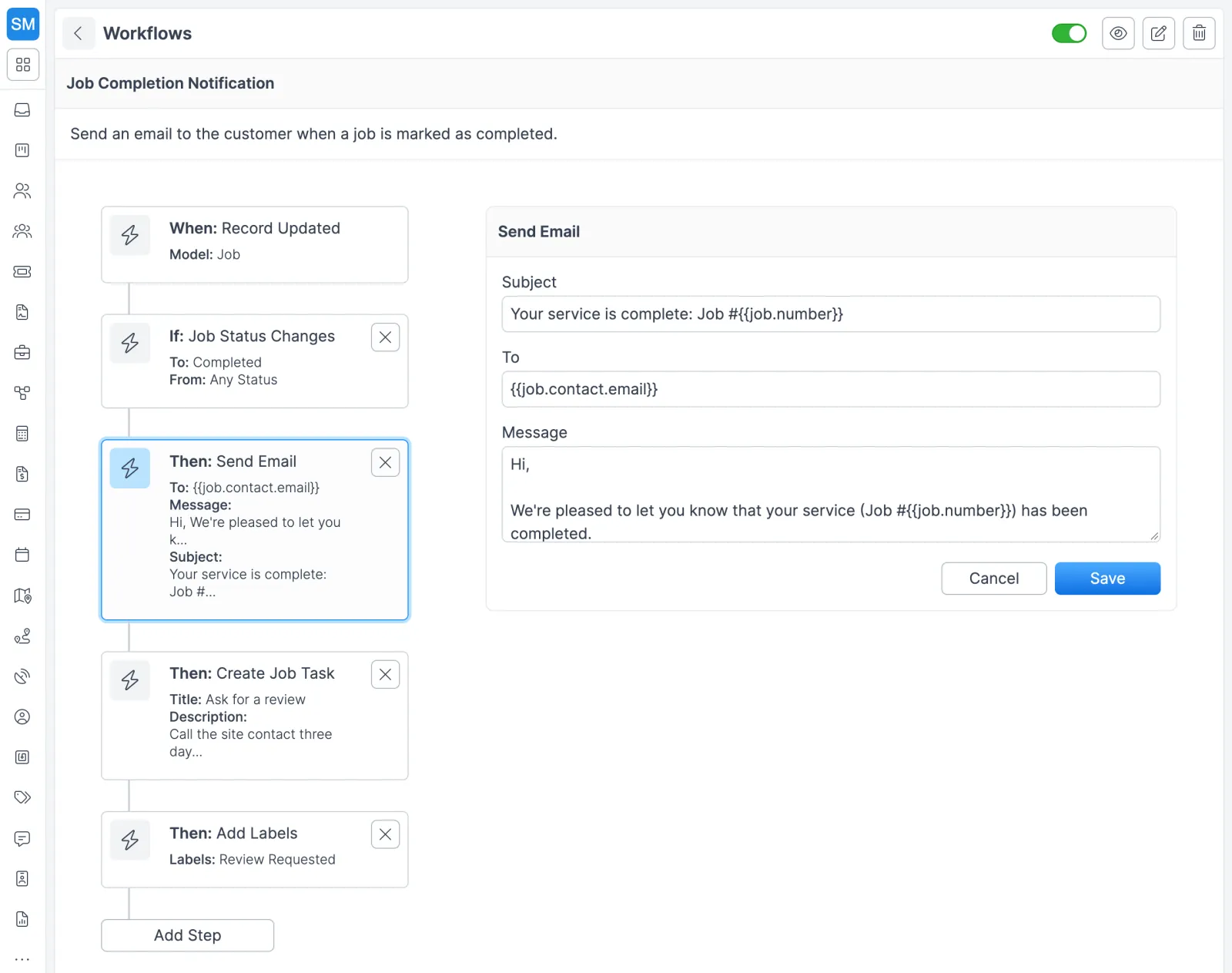
How a workflow runs
Every workflow lives in Settings > Workflows and takes five steps to build.
- Name it. Click the + button (Create Workflow), enter a name such as “Notify tech on job completion” and an optional description, then save. Forz creates the workflow as inactive and opens the builder.
- Pick the trigger (When). Choose Record Created, Record Updated, Manual Trigger, Scheduled / Recurring, Date-Relative Trigger or Lead Converted, then the model: Customer, Estimate, Invoice, Job, Lead, Task or Ticket. For a manual trigger, you also pick which roles can run it.
- Add conditions (If). This step is optional. Check whether a field changed, changed to a specific value or holds a value right now, or whether the status moved between two statuses. Status conditions follow the model you picked, so Job Status Changes only appears on job workflows. Manual triggers skip conditions.
- Add actions (Then). Add as many as you need, with an optional Wait / Delay step between them (minutes, hours or days, counting only business hours if you choose). When the trigger fires and the conditions pass, Forz runs them in order.
- Switch it on. Test the logic, then flip the toggle. Active workflows sit at the top of the list, and edits to an active workflow apply from the next trigger event.
What each action does
| Action | What happens | You fill in |
|---|---|---|
| Send Email | Queues an email notification | Subject, to address, message (merge variables allowed) |
| Create Job Task | Adds a task to the job’s task list | Title (description and assignee optional) |
| Add Labels | Appends labels and keeps the ones already there | At least one label |
| Remove Labels | Takes the chosen labels off the record | At least one label |
| Set Field Value | Overwrites a field with the new value | Field, value |
| Update Status | Changes the record’s status | Status |
| Send Webhook | Sends a POST request with the record data | Webhook endpoint |
| Add Note | Adds a note to the record | Note text (merge variables allowed) |
| Assign Owner | Makes a user the record’s owner | User, and whether to notify them |
| Send In-App Notification | Notifies the users you pick inside Forz | Users, message |
| Apply Form, Apply Guide | Attaches the form or guide that matches the job’s system and job type | No settings (it matches automatically) |
Three workflows contractors set up first
These follow common setups from the Forz help center. Swap in your own statuses, labels and people.
Plumbing: email the tech when a job is scheduled
Use a Record Updated trigger on Job and a Job Status Changes condition from Unscheduled to Scheduled. Add a Send Email action to the technician’s address with a subject like “New job assigned”. The dispatcher schedules the job, and the email goes out with no second step.
Fire protection: label website leads
Use a Record Created trigger on Lead. A “Record field has a specific value” condition checks that the source field equals Website, and an Add Labels action applies the Website label. Every lead from the website carries that label from the start.
HVAC: book the follow-up after maintenance
Use a Record Updated trigger on Job and a Job Status Changes condition from Any Status to Completed. A Create Job Task action adds “Schedule 6-month follow-up” and assigns it to the account manager. The next visit has a named owner as soon as the current one closes.
Check these before you switch a workflow on
- Every qualifying event counts. An active Record Created or Record Updated workflow runs on every matching event from then on. Test it before you turn it on in a live account.
- Watch for loops. An Update Status action can trigger another workflow that watches for status changes. Two workflows that keep setting each other’s status will keep firing.
- Labels add, fields overwrite. Add Labels never removes existing labels. Set Field Value replaces whatever the field held before.
- If nothing fires, confirm the workflow is active, the trigger model matches the record type, and the condition values match what’s on the record. For Send Email, check the To address on the action and the recipient’s spam folder.
Works with the rest of Forz
- Statuses. Workflows react to your statuses, so start in Settings > Status Options. Add a custom job status like Waiting for Parts, or sub-statuses under In Progress, then build workflows around them. Work orders shows how job types and statuses shape each job.
- Task templates. A workflow action adds one task. For a whole checklist, apply a task template: a named set of tasks with assignees and due-date offsets, scoped to customers, deals, jobs, leads, projects or tickets. Project management covers tasks in more depth.
- Leads and customers. Status conditions work on the lead pipeline (New, Contacted, Qualified, Converted, Lost) and on customer statuses, so your CRM runs on the same rules.
- Texting and email. For two-way conversations with customers, see customer communication. The Twilio connection is described on the integrations page.
- Invoice follow-ups. Invoices you email use templates with merge variables such as the invoice number, and you can add your own, like a payment reminder to pick when you resend an overdue invoice. See invoicing and payments.
Setting it up? The Workflows guide walks through each step, and the Status Options guide covers custom statuses.