
Field service CRM that ties every customer, site and contact to the work

Move leads and deals through your own pipeline stages, convert a won lead into a customer in one click, and keep every building, contact, job, estimate and invoice on the record your dispatchers already use.

Lead-to-customer conversion in one click Included in every plan iOS & Android
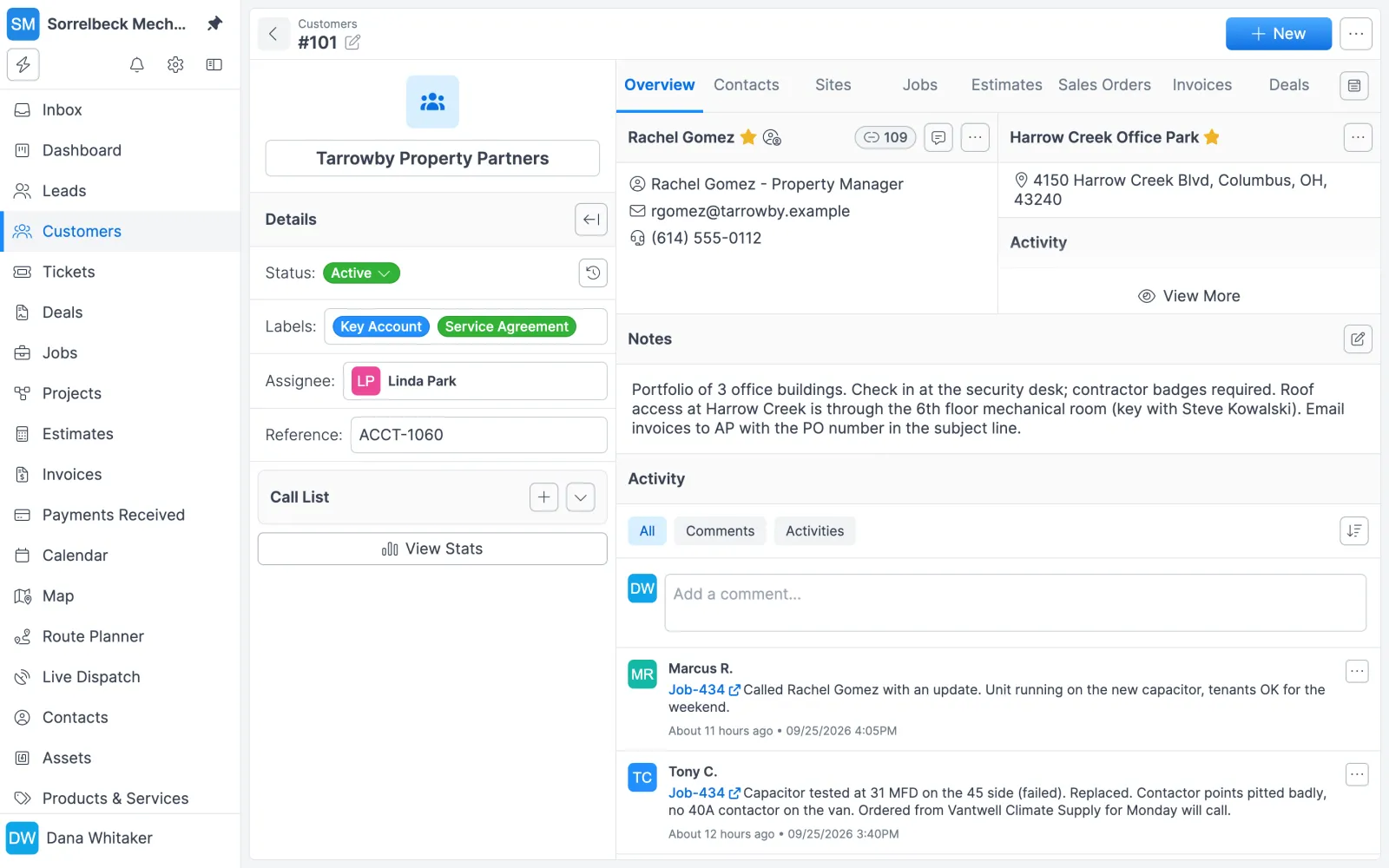
Forz customer record for Tarrowby Property Partners showing the primary contact, service site, account notes and technician activity
A customer record with contacts, sites, notes and the activity timeline.

The problem with the old way

Contacts scattered across phones and inboxes

The facility manager's cell is in one tech's phone, the billing contact is in someone's inbox, and nobody is sure who approves work at which building.

Leads that go cold

Trade show cards and web inquiries sit in a spreadsheet with no owner and no call-back date, and the maintenance contract goes to whoever follows up first.

A sales tool that can't see the jobs

When the CRM is separate from scheduling and billing, someone re-keys every won account, and sales can't see past visits or open invoices before calling a customer.

How field service CRM works in Forz

Customers, sites and systems in one record

Each customer gets a number (#101, #102 and so on, or your own format), a status, labels, an assignee and custom fields. Saving a new customer creates its primary contact and service site, and picking a system type such as HVAC or fire alarm adds that system to the site.

Multi-site accounts

Add each building, campus or rental property as its own site with its own contacts, systems, job history and inspection records. Forz geocodes every site address for the map and route planning, and the primary site sets the default service address for new jobs.

Contacts linked where they work

One contact can be linked to several customers, sites, jobs, leads, vendors and projects, each with a relationship type: Associated, Billing, Technical or Decision Maker. Duplicate warnings and a merge tool keep one person as one record.

Leads with duplicate detection

Capture prospects with organization, contact, address and industry, then move them through your own stages in a list or Kanban board. Forz warns you before saving a lead whose name or email closely matches an existing one.

One-click lead conversion

Convert to Customer moves the lead's contacts, sites, documents, tasks and deals to a new customer record and logs the conversion there, so nobody retypes the account.

Deals pipeline with weighted amounts

Each deal has an amount, close date and win probability, and Forz calculates the weighted amount: a $10,000 deal at 60% shows $6,000. Drag deals between your configured stages on the board and filter by assignee, customer, label or date.

Call lists for follow-up

Build outbound call lists of customers or leads with a call script, call dates, assigned reps and your own outcomes (Keep, Remove or New Date). Each outcome writes a note to the record, and a stats view charts results by outcome and by user.

Activity timeline and saved views

A contact's activity timeline lists notes, jobs, estimates, invoices, SMS conversations and calls across every organization they're linked to. Saved views keep filtered lists, like VIP customers or this month's deals, one click away.

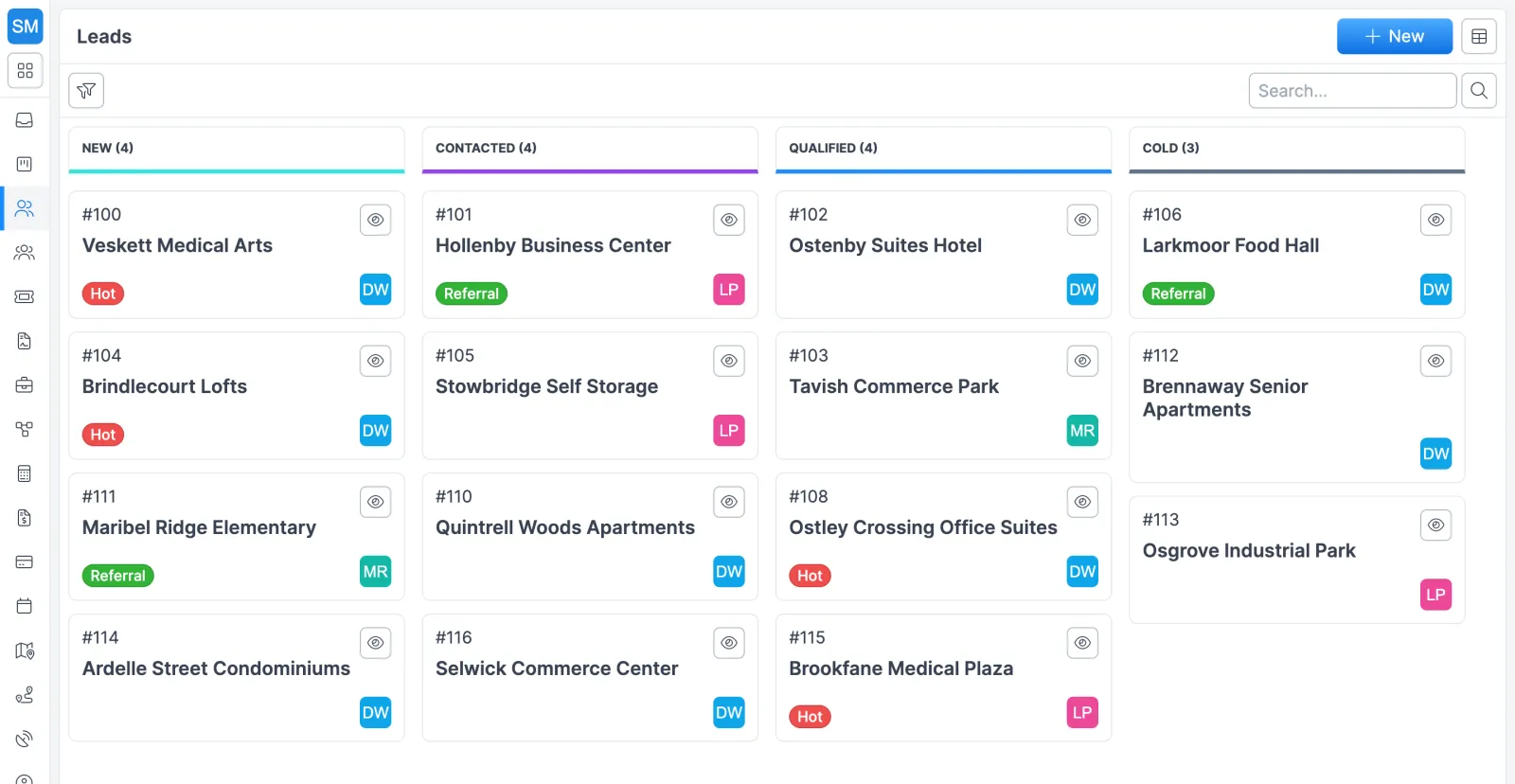
Forz Leads kanban board with New, Contacted, Qualified and Cold columns of commercial property leads, tags and rep initials
Leads move across your own stages on a board.
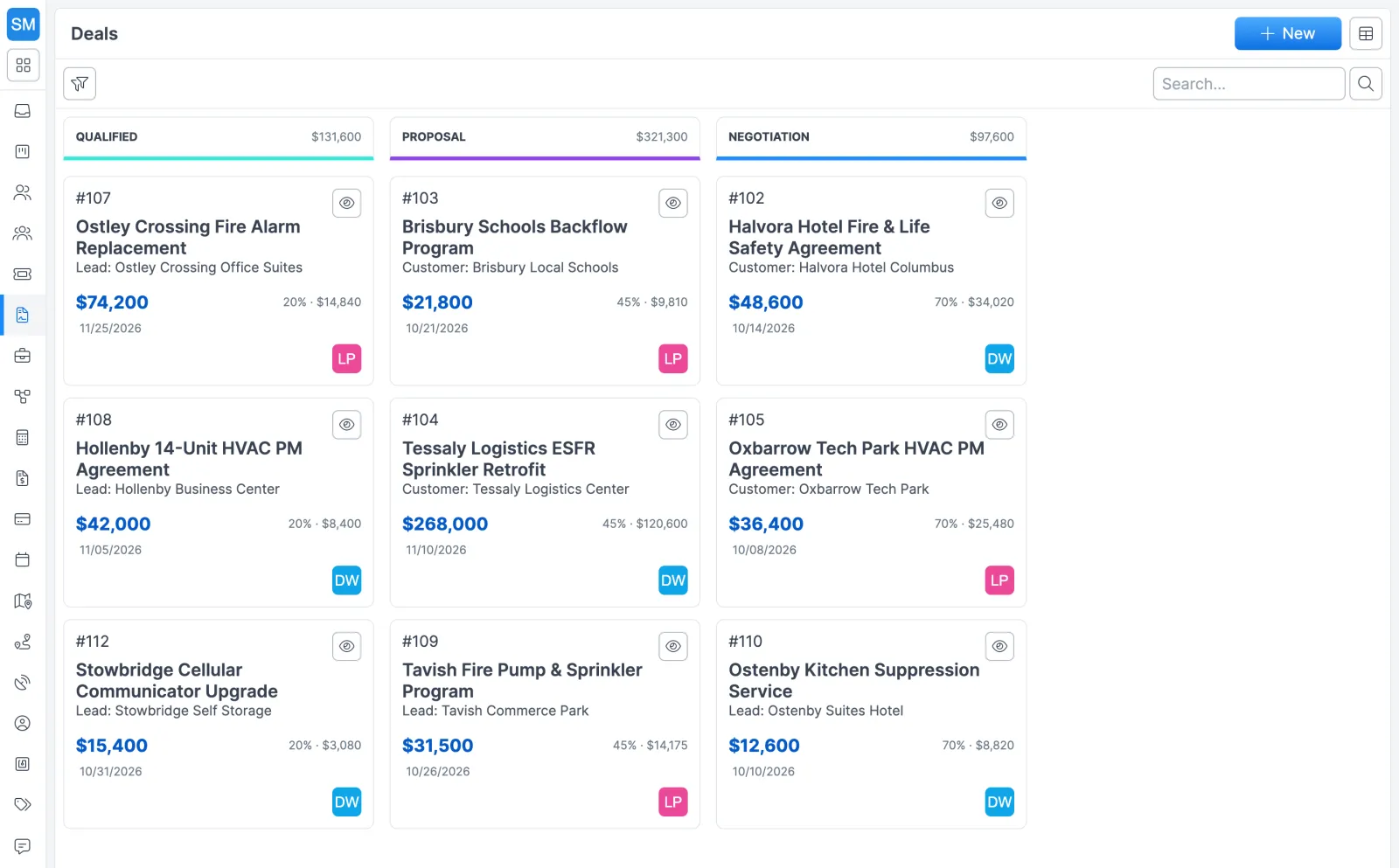
Forz Deals Kanban board with Qualified, Proposal and Negotiation columns showing deal amounts, win probability and weighted value
The deals pipeline with amounts, win probability and weighted value per stage.

How a lead becomes a customer in Forz

  1. Capture the lead. Open Leads in the sidebar and enter the organization, contact, address and industry. Forz numbers the lead (for example #101), creates a linked contact and a site from the address, and warns you if the name or email is a close match (40% similarity or higher) for an existing lead. Requests from new people on your public service request form arrive as leads too, and a second request from the same person adds a note to that lead instead of creating another.
  2. Qualify it. Assign the lead to a rep and drag it across your own stages on the board view. The lead profile holds tasks, events, files and a smart list, a standard qualification checklist filled in from your lead templates.
  3. Track the money as a deal. Create a Lead Deal with an amount, close date and probability. Estimates attach to customer records, so once the lead converts, build the quote in estimates, where the customer can accept it online.
  4. Convert it. When the work is won, click Convert to Customer. Everything in the table below moves to the new customer record.
  5. Run the account. Add sites, systems and contacts as the relationship grows. The View Stats button on the customer record shows revenue, outstanding balance, average invoice value and payment behavior.

What carries over on conversion

On the leadOn the new customer
ContactsMoved over, primary contact kept
Additional sitesMoved over
Documents and tasksMoved over
DealsRe-linked to the customer
The lead recordMoved to the trash bin, with a conversion note logged on the customer

Conversion is one-way. If a customer with the same organization name already exists, Forz stops the conversion, so search your customers first.

Accounts with many buildings

A commercial account often spans several addresses. Forz treats each location as its own site under the customer.

HVAC: a property manager with 12 buildings

Create “Greenfield Properties” with the head office address, then add each apartment building as a site. Every site is geocoded, so it appears as its own pin in the route planner, and each keeps its own contacts, systems and job history.

Fire protection: a university campus

Set up the university as one customer and add Engineering Hall, the Student Center and the Library as separate sites. Each building gets its own fire alarm system, inspection schedule and on-site contacts. The fire protection page shows how the rest of that work runs in Forz.

Plumbing: one facility manager, many sites

Create the facility manager once, link her to the customer and to every building she oversees, and set her as the primary contact on each site. Whichever building a tech is sent to, the dispatch sheet shows her phone number.

Follow-up that runs on a list

Call lists. A dispatcher builds “Q2 HVAC Renewals”, adds 150 customers with expiring maintenance contracts, spreads the call dates over two weeks and assigns three reps. Each rep works the list with the call script to hand and picks an outcome you defined: keep the item, remove it, or reschedule it to a new date. Every outcome writes a note to the customer, and the Stats view charts outcomes and calls per user.

Tickets. When a customer reports a problem, log a ticket against the customer, site and system, assign it, and create the repair job straight from the ticket. The ticket stays the single thread for every visit tied to that issue.

Saved views. Save any filtered list (VIP customers, deals closing this month, leads assigned to you) as a one-click view. Each user can keep up to 100 views per list and set one as the default.

Works with the rest of Forz

  • Customer communication: SMS and email threads and recorded calls show up on each contact’s activity timeline.
  • Estimates: quote the deal and let the customer accept online.
  • Customer portal and online booking: customers see their records and send service requests, and new requesters come in as leads.
  • Workflow automation: run When-If-Then rules on customers and leads, for example adding a “Website” label to every new web lead.
  • AI agents: connect your own agent through the Forz CLI or REST API to look up and update customers, contacts, leads and deals.

Setting it up? The Leads guide and the Managing Customers guide walk through each screen.

Frequently asked questions

A field service CRM tracks customers, leads and sales opportunities in the same system that schedules and bills the work. In Forz, a customer record holds its contacts, service sites, systems, deals, estimates, jobs and invoices, so sales and operations work from one account history. Leads and deals are managed in the same account instead of a separate sales tool.

Yes. Add each building, campus or property as a separate site under the customer, and each site keeps its own address, contacts, systems, job history and inspection records. Forz geocodes every site address for the map and route planning. The first site is the primary site, and its address is the default service address for new jobs.

Open the lead and click Convert to Customer. Forz creates the customer record, moves over the lead's contacts with the primary contact preserved, its additional sites, documents, tasks and deals, and logs a note on the new customer. Conversion is one-way, and the original lead moves to the trash bin.

Yes. Each deal carries an amount, close date and win probability, and Forz calculates the weighted amount (amount times probability) for forecasting. You move deals through your own stages on a Kanban board or list, link each one to a customer or lead, assign an owner, and filter by status, assignee, customer, label or date.

Yes. Contacts exist on their own and can be linked to multiple customers, sites, jobs, leads, vendors and projects, each with a relationship type such as Billing, Technical or Decision Maker. A property manager who oversees several buildings stays one contact, and each record marks one primary contact.

Yes. Custom fields can be added to customers, contacts, sites, leads and deals, as well as jobs, estimates and invoices. Field types include text, paragraph, dropdown, multiselect, checkbox, date, URL and file attachment, so you can track something like a permit number and permit expiration date on each customer.

No. Leads, deals, call lists and customer records are part of Forz and included in every plan, which costs $50/user/month billed annually or $60 month-to-month, with a 10-user minimum. Optional modules such as Call Lists can be switched on or off in Settings > Modules.

See field service CRM in action

Get a 30-minute personalized demo and watch how it works on your own workflows.

Free standard data import Free 30-minute demo, no commitment