
Set up online booking in four steps
- Turn on requests. In Settings > Customer Portal, switch on Requests. If you only work in certain areas, list your service area ZIP code prefixes and write an out-of-area message.
- Turn on online booking. Switch on the Online Booking module in Settings > Modules, then open Settings > Online Booking. Set Bookable days, Bookable from, Bookable until and Arrival windows per day. Choose a Booking technician group if only one team should take booked work, and decide whether Confirm bookings automatically stays on. If you switch it off, set Release unconfirmed bookings after (hours).
- Choose bookable job types. In Settings > Job Types, switch on Available for online booking for each type customers can book and set its Booking duration (minutes). Add a Customer-facing label when your internal name is shorthand only your team understands.
- Share the link. Copy the Service request form link and put it in your email signature or on a business card. For your website, Settings > Online Booking also has Button code for a Book online button and Embed code that shows the form inside your page. Customers who already use your portal find the same form under the Requests tab.
Turning the feature on and setting windows, hours and job types takes the Admin role. Anyone who can edit jobs can accept or decline a booking.
What happens when a customer submits
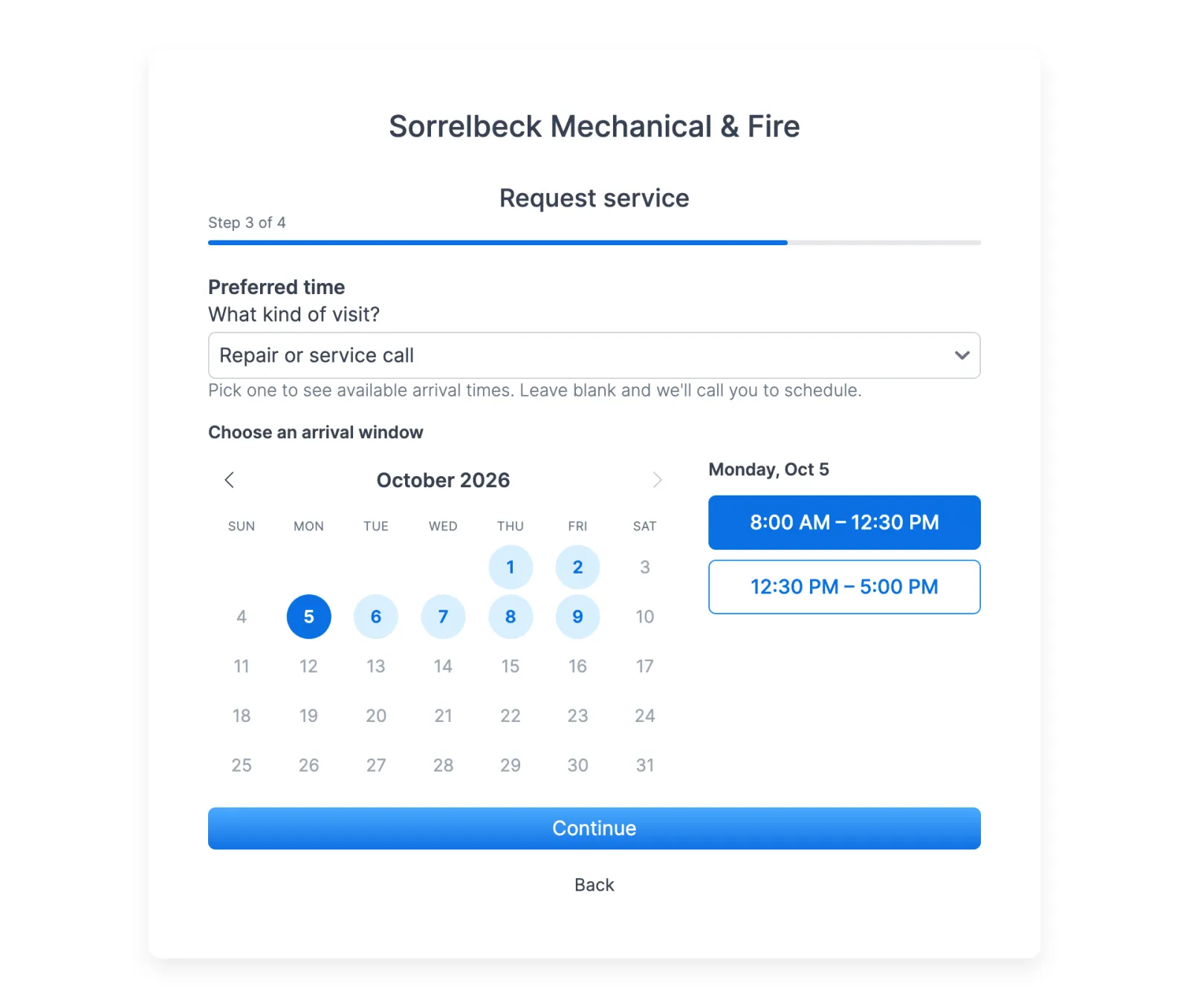
The form has four short steps: the customer describes the problem, enters the service address, picks the type of visit, a day and an arrival window, then enters their contact details. If they chose a window, Forz emails a short code and files the request once they enter it. Forz then creates a ticket, a job and a calendar event, and reserves the window on the technician it picked. The customer never chooses a person.
What Forz creates depends on who is asking:
| Who submits | Email code needed? | What Forz creates |
|---|---|---|
| A contact you already have | Yes | A ticket on that customer’s account |
| Someone new, no arrival window | No | A lead your team can qualify |
| The same new person again | No | A note on their existing lead |
| Anyone who books an arrival window | Yes | A ticket, a job and a calendar event, with the window reserved on a technician |
| Someone who picks “I can’t get the code” | Skipped | A lead for review, with no window held |
Every request records that it came through the portal, so your team can tell it apart from a phone call. A stranger who submits without picking a window never sees a code screen, so genuine new inquiries aren’t slowed down.
Emails your customers get
- Verification code, the short code that confirms their email address.
- Request received, which acknowledges the request and links to their portal.
- Appointment confirmed, with the promised arrival window, the service address and a calendar file for their own calendar.
- Appointment released, sent when a pending booking is declined or expires, so nobody waits on a visit that isn’t happening.
How trades use it
HVAC: new callers become leads, not customers
A property manager who has never worked with you finds the request form on your website and asks for service. With no arrival window picked, no code is needed, and the request lands as a lead with the request text, contact details and service address. Your team reviews it and clicks Convert to Customer when the lead qualifies, so nobody lands in your customer list before someone has looked at them.
Plumbing: an existing customer books a visit
A restaurant manager signs in to your portal, opens the Requests tab and picks your drain cleaning job type, shown under its customer-facing label, plus a morning window. After the email code, Forz creates the ticket, job and calendar event and sends a confirmation with a calendar file. The manager checks the status on the Requests tab instead of calling your office.
Fire protection: the office reviews first
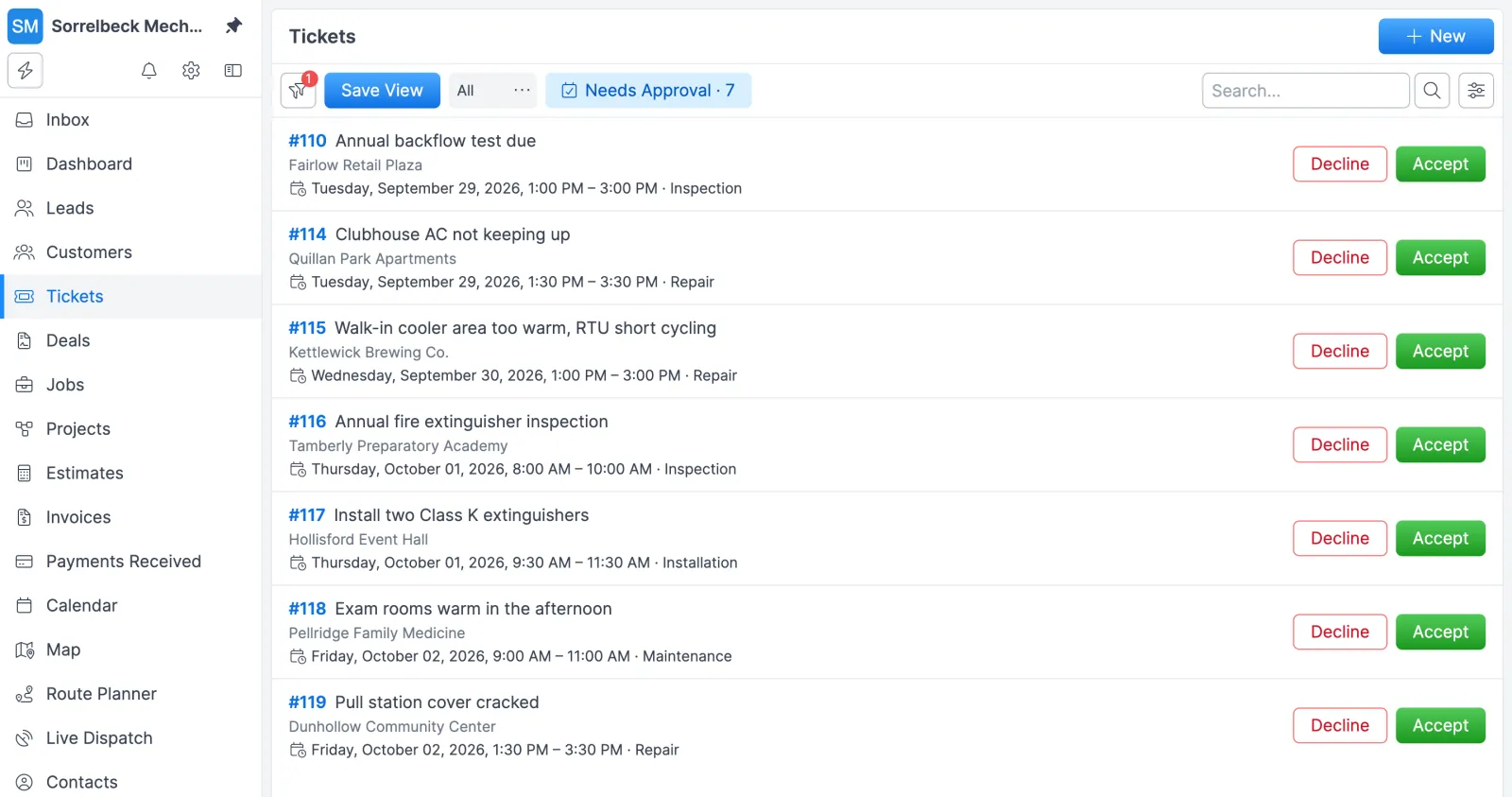
A fire protection contractor wants a dispatcher to look at every booked visit before committing, so it switches off Confirm bookings automatically. Bookings arrive as pending and wait under Needs approval in Tickets. The dispatcher accepts the ones that fit and declines the rest, which frees the window and tells the customer. If nobody acts within the release time, Forz releases the booking and emails the customer.
Works with the rest of Forz
- Customer Portal: the Requests tab sits next to the estimates, invoices, jobs and inspections your customers already check there.
- Route Planning: booked technicians are picked with the same scheduling logic Smart Dispatch uses, and booked visits appear on the calendar your dispatchers work from.
- Field Service CRM: new requesters arrive as leads you qualify and convert.
- Estimates & Quotes: when a request needs a price first, send an estimate the customer can accept in the portal.
- Invoicing & Payments: invoice the job when it’s done, and customers pay online from the portal or the emailed invoice link.
- Customer Communication: follow up on a request by email or SMS.
- Inspections & Asset Tracking: a job created from a ticket inherits the ticket’s customer, service address and system, so the visit stays tied to the equipment you track.
Setting it up? The Service Requests & Online Booking guide walks through each setting.